
Every meal plan can be downloaded as a PDF, a Word document or an Excel (XLSX) spreadsheet. Use them to print shopping lists, hand recipes to cooks, or share plans with people who don't use Wholesum.
Export a meal plan
Open the meal plan and use the export buttons on the right of its header:
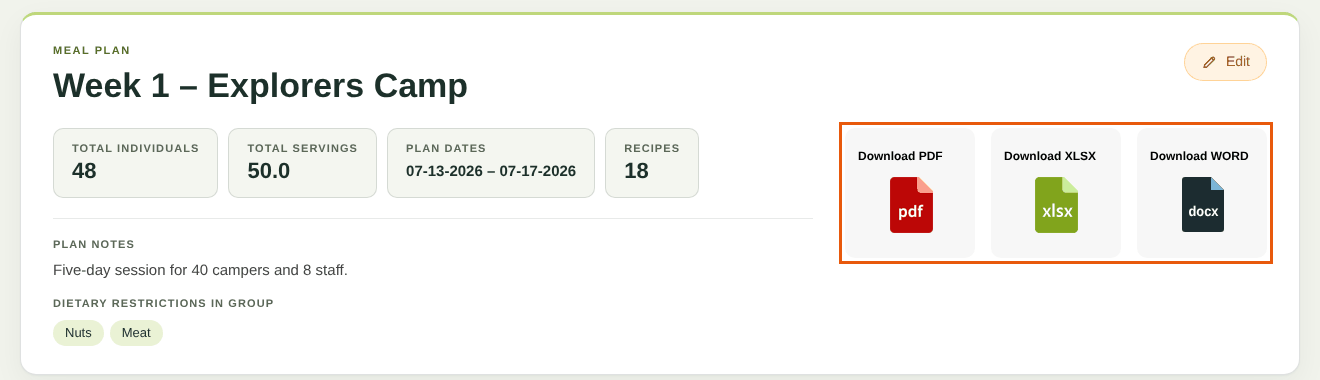
Export buttons on a meal plan
- Download PDF: shopping list, calendar and scaled recipe details, ready to print.
- Download WORD: the same content as the PDF, as a Word document you can edit.
- Download XLSX: the shopping list as a spreadsheet, with one extra sheet per day. Available on Personal plans and up.
Here's what the first page of a Word export looks like:
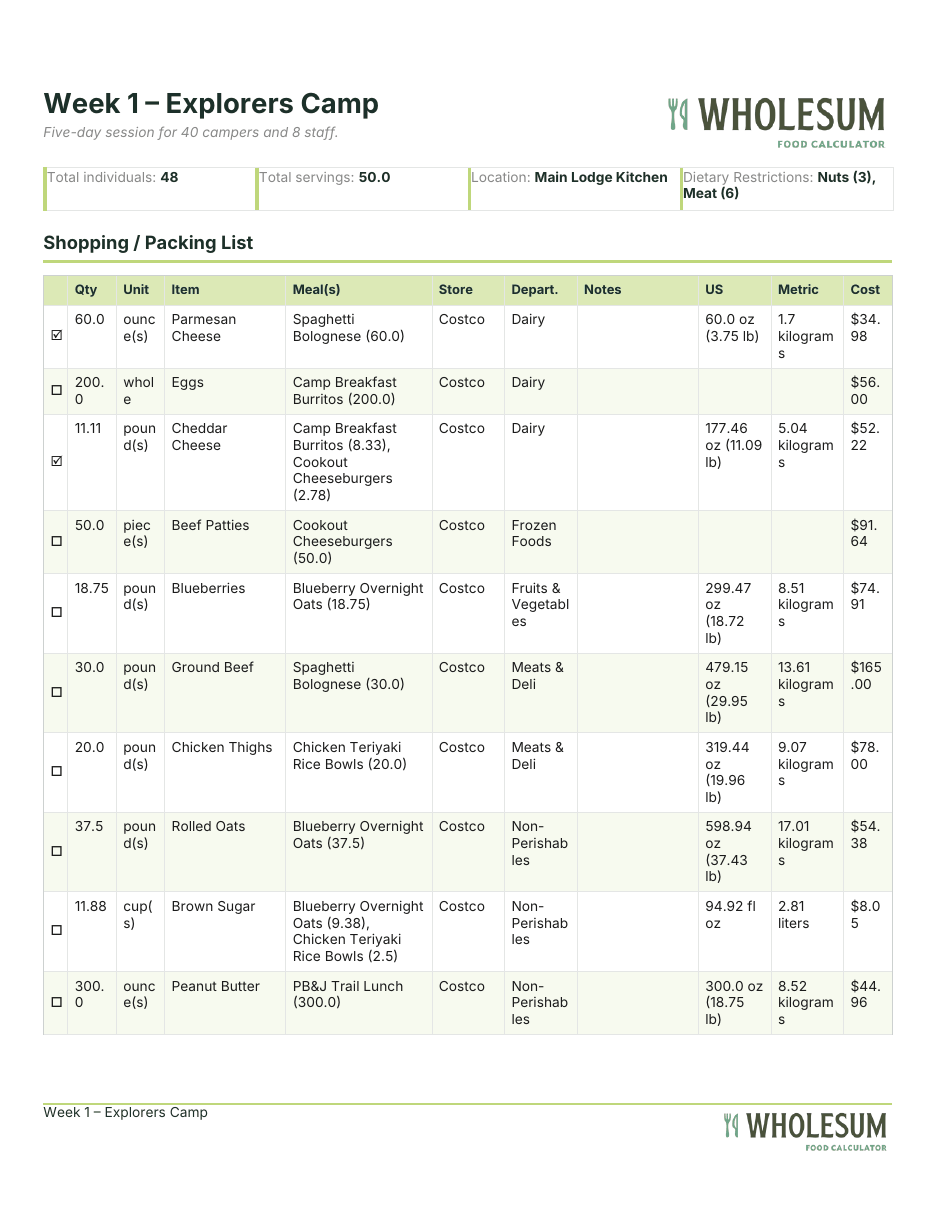
The first page of a Word export
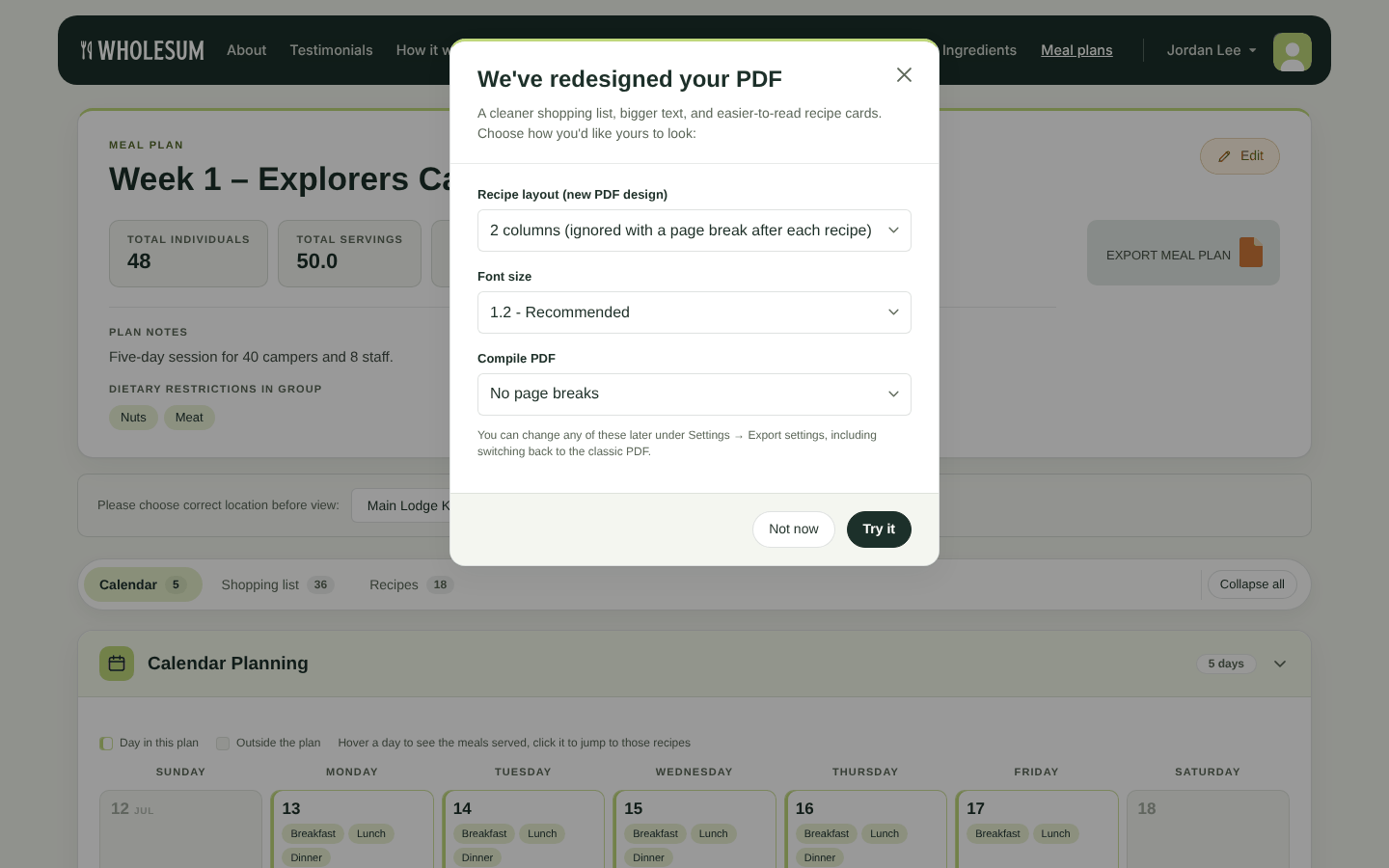
First export? Wholesum may ask whether you'd like to try the redesigned PDF, with bigger text and easier-to-read recipe cards. Choose a layout, font size and page breaks, then click Try it. Or click Not now. You can change this any time in Settings → Export settings.
The PDF redesign prompt
Export a single day
On the meal plan page, each day in the Calendar Planning section has an Export to PDF link. It downloads just that day's shopping list and recipes.
Filtered exports (Enterprise)
With Filtered exports turned on in Settings, one Export meal plan button lets you choose which sections to include and filter by store, department, packing notes and dates. See Filtered exports (Enterprise).
Combined lists across several meal plans
Shopping for several groups at once? Pull combined lists on the Meal plans page makes one shopping list for many meal plans. See Shopping for multiple meal plans.
Choosing columns, sorting and layout
Which columns appear, how the list is sorted, page breaks and PDF zoom are all set in Settings → Export settings. See Export settings (columns, sorting and PDF layout).
Sharing an export
Each export opens from a private link that's unique to that meal plan. Anyone you send the link to can open it without logging in, so only share it with people you trust. A cloned plan gets a new link.


