
A meal plan is a group you're feeding (a camp session, a trip, a retreat) together with the recipes you'll serve them, day by day. Each meal plan produces its own scaled shopping list.
To see your meal plans, click Meal plans in the top menu.
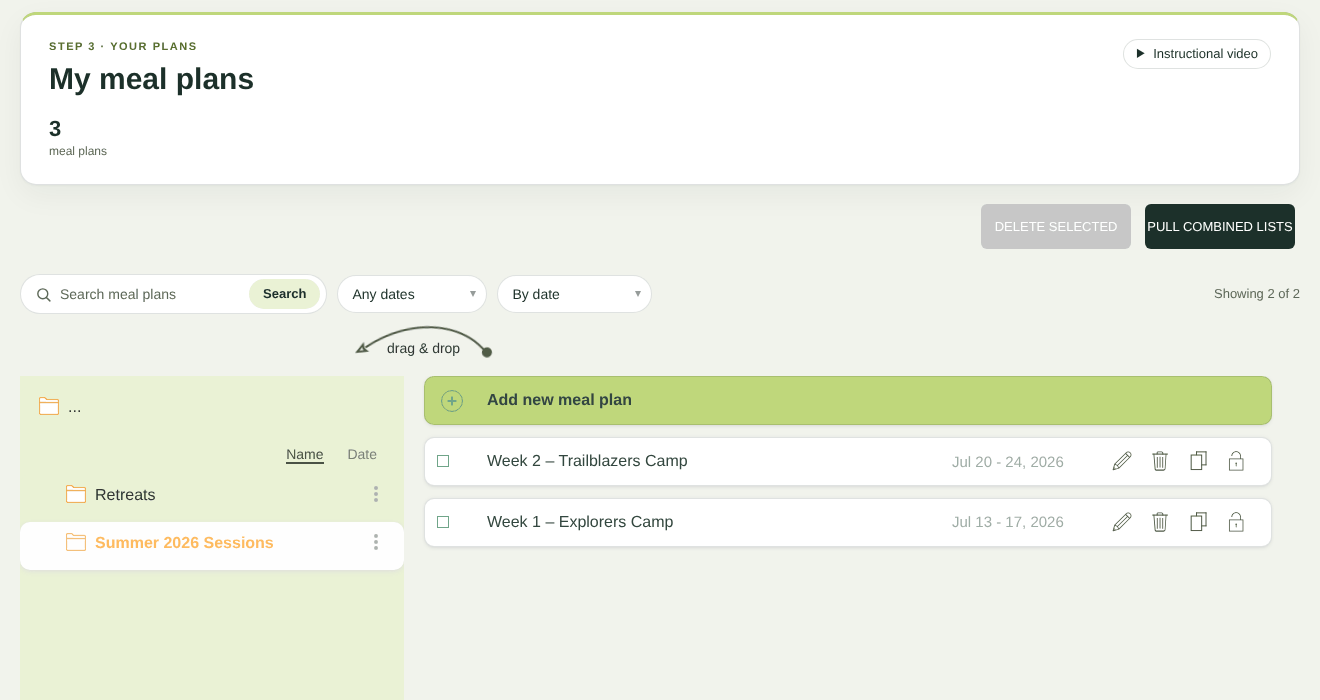
The My meal plans page
Organising plans into folders
The panel on the left holds your folders:
- ... is the top level (your root folder).
- Below it are your own folders, such as Summer 2026 Sessions or Retreats. Sort them by Name or Date.
- Trash holds deleted plans until you restore or permanently delete them.
Create a folder: click + at the bottom of the folder panel, enter a name and save.
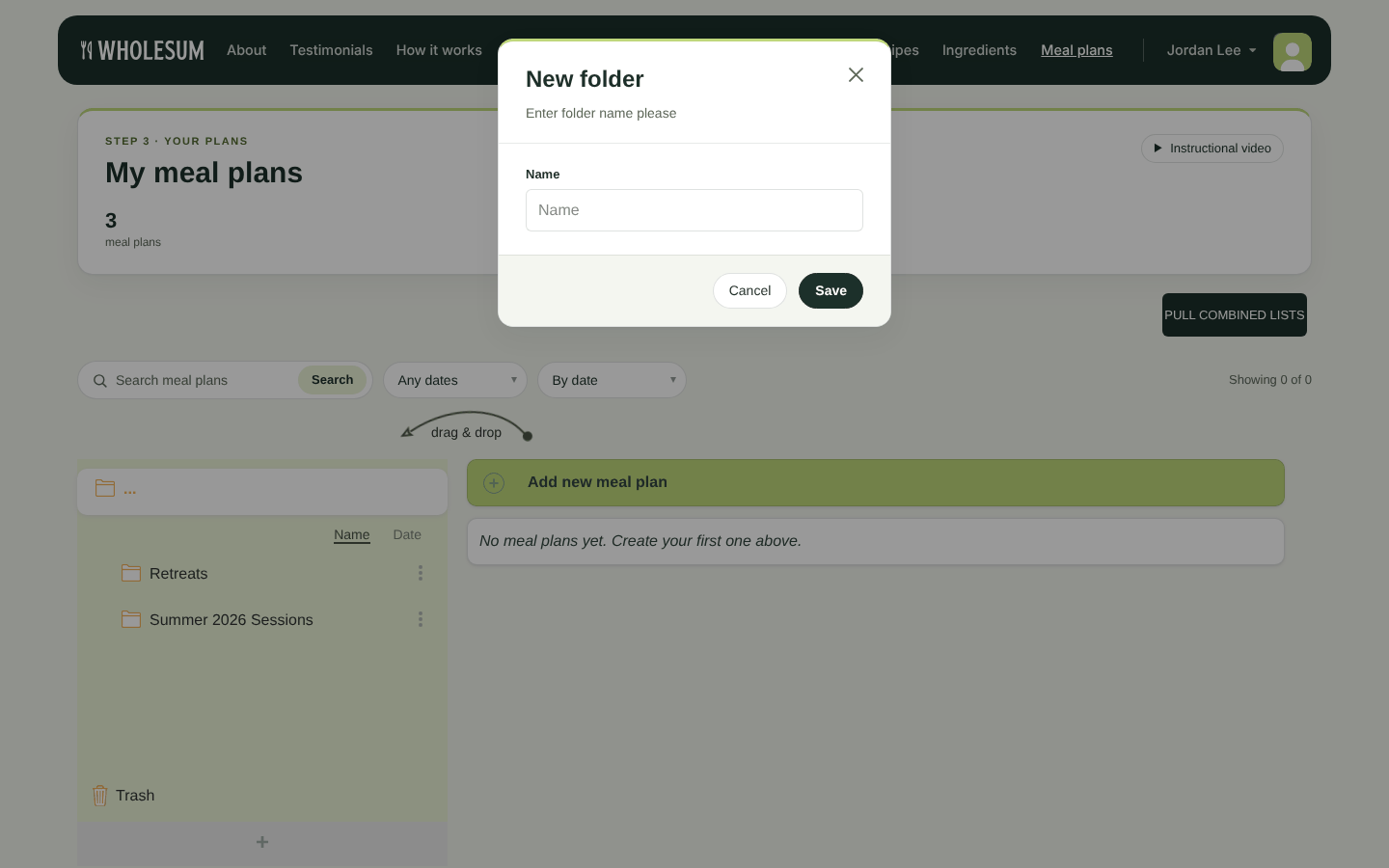
Creating a new folder
Rename or delete a folder: click ⋮ next to the folder.
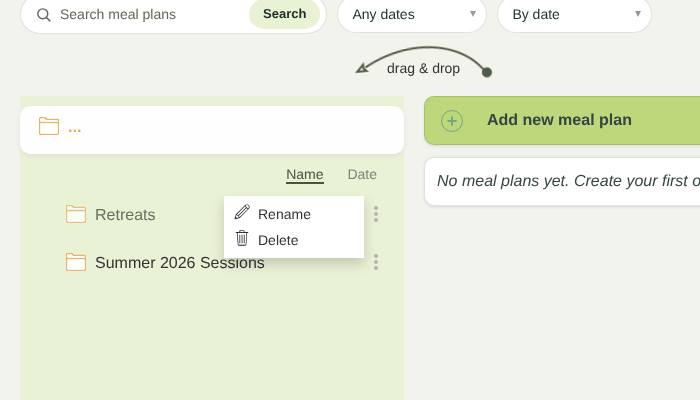
The folder menu
Move a plan into a folder: drag the plan onto the folder ("drag & drop"). You can also choose a Folder when you edit the plan.
Deleting a folder moves the meal plans inside it to Trash. You can restore them from there.
Finding a plan
- Search meal plans filters as you type.
- Any dates narrows to Upcoming, In progress, Past or No dates (plans set up by day number).
- By date sorts A – Z, Recently created or Recently updated instead.
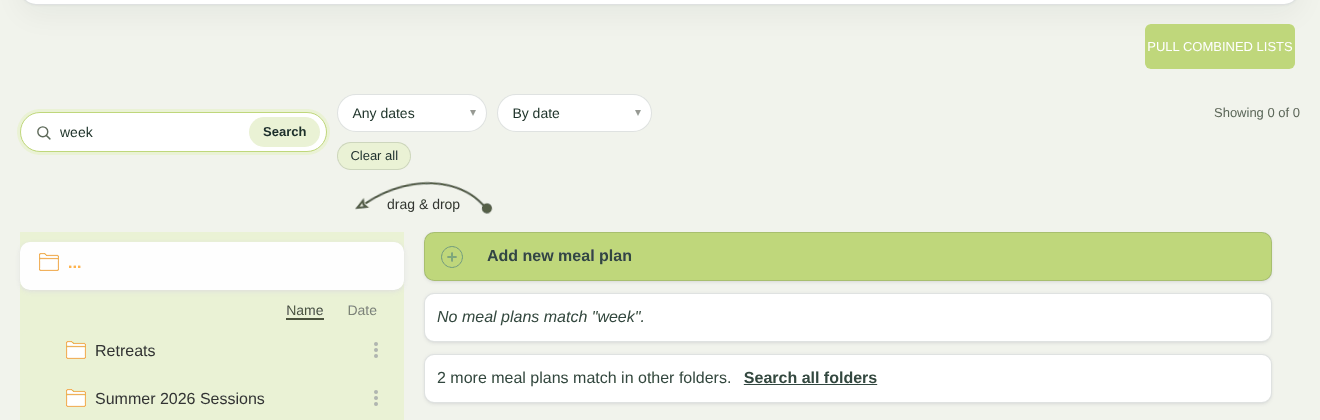
Searching meal plans
If matching plans are in other folders, you'll see a note such as "1 more meal plan matches in another folder", with a Search all folders link.
Actions on each plan
The icons at the right of each plan are, from left to right:
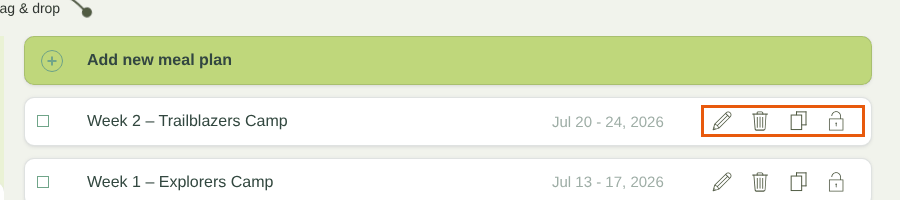
Plan actions: Edit, Delete, Clone, Lock
| Icon | Action |
|---|---|
| Pencil | Edit the plan |
| Bin | Delete: moves the plan to Trash |
| Copy | Clone: makes a copy named "plan name Copy" |
| Padlock | Lock or Unlock the plan (account owner only) |
Click a plan's name to open its page with the shopping list. See The meal plan page and shopping list.
More on these actions in Locking, cloning, deleting and restoring meal plans.
Buttons above the list
- Pull combined lists: one shopping list for several meal plans at once. See Exporting shopping lists and meal plans (PDF, Word and Excel).
- Delete selected: tick several plans, then click this to move them all to Trash.


