
We've redesigned the meal plan PDF to be easier to read and to fit more onto every page. It's optional — turn it on when you're ready, and switch back to the classic PDF at any time.
What's different
- Larger, clearer text throughout, so lists stay readable in a busy kitchen or out in the field.
- Redesigned shopping list with shaded alternating rows and a defined header, making it easier to follow a row across the page.
- Recipe cards on a white background with a clean border — designed to print well and save ink.
- Day headers above each day's recipes, so you can see at a glance which meals belong to which day.
- A two-column recipe layout that fits roughly twice as many recipes per page.
- An updated calendar with alternating row shading and a clearer header row.
Turning it on
There are two ways to switch to the new design.
From the export pop-up
The first time you export a meal plan, you'll be asked whether you'd like to try the new design. Choose your layout, font size and page breaks, then select Try it. Your PDF downloads straight away using the new design.
If you select Not now, you'll keep the classic PDF and won't be asked again — you can still turn the new design on from your settings whenever you like.
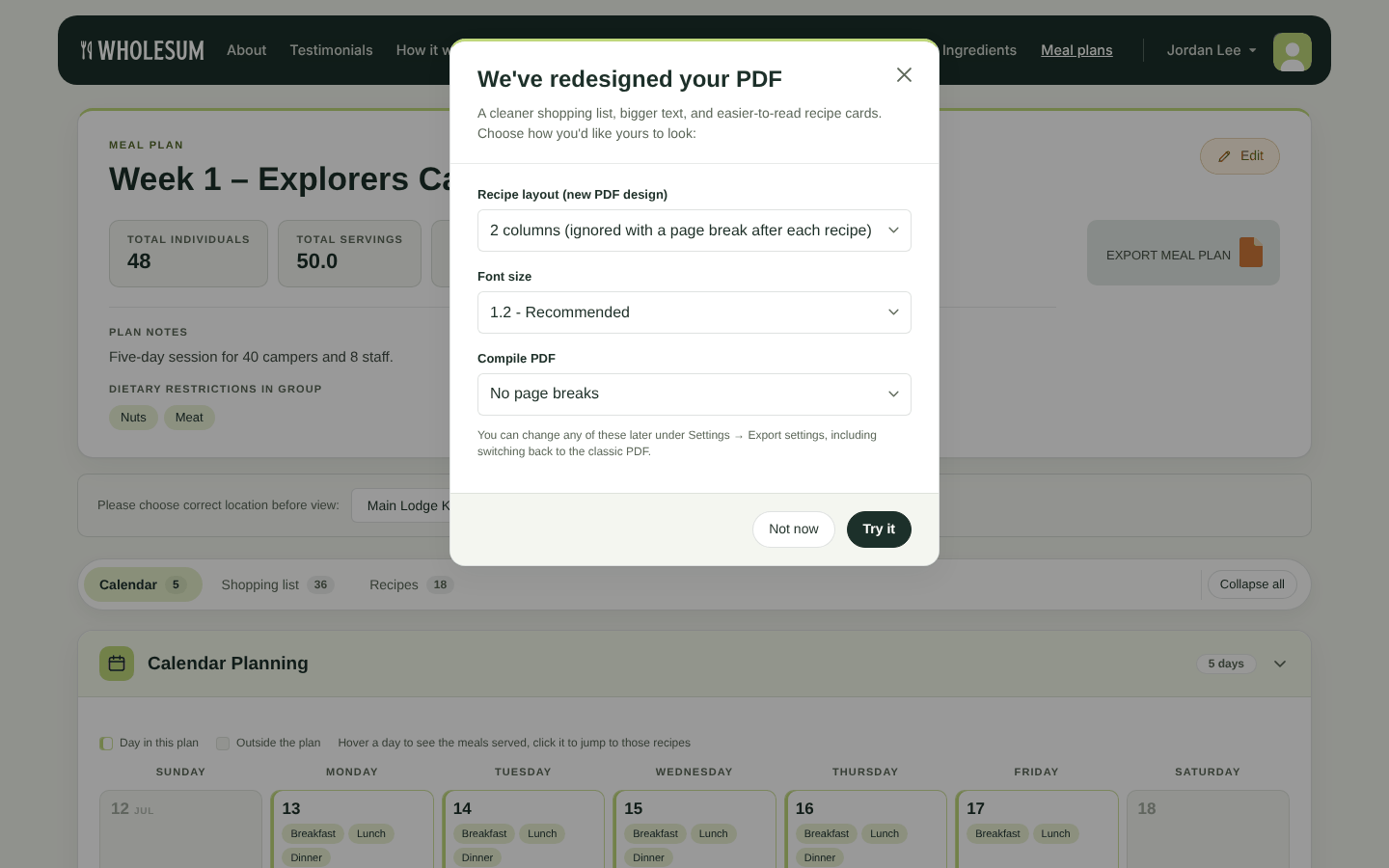
The new PDF design prompt
From your settings
Settings › Export settings › Edit, then turn on New PDF design and click Save changes.
Once it's on, every meal plan you export uses the new design until you turn it off.
Adjusting the layout
Three settings control how your PDF looks. You can set them in the export pop-up, or change them any time here:
Settings › Export settings › Edit
| Setting | Options | What it does |
|---|---|---|
| Recipe layout | 1 column 2 columns |
Places recipe cards side by side to fit more per page. New PDF design only. Defaults to 2 columns. |
| Font size | 1.0 – 1.5 | Scales the text on the whole document. 1.2 is our recommended starting point. Larger sizes are easier to read but use more pages. |
| Compile PDF | No page breaks After each recipe After each day |
Controls where new pages begin — useful if you hand out a separate page per day, or per recipe, to your kitchen team. |
Worth knowing
Setting a page break after each recipe means only one recipe fits on a page, so the two-column layout doesn't apply. If you want two columns, choose No page breaks or Page break after each day.
This setting is labelled Font size in the export pop-up and PDF zoom on the settings page — they're the same control.
Going back to the classic PDF
Settings › Export settings › Edit, then turn off New PDF design and click Save changes.
Your exports return to the classic layout immediately. Nothing is lost by switching in either direction, so it's worth exporting the same meal plan both ways to compare.
What hasn't changed
- Your export filters. Filtering by store, department, date range or ingredient tag works exactly as before.
- Your shopping list columns. The columns you've chosen to show or hide carry over to the new design.
- Shared PDF links. Links you've already sent to staff or suppliers keep working. They'll show whichever design your account is set to.
- XLSX exports. Spreadsheet exports are unaffected.
For every export option, see Export settings (columns, sorting and PDF layout) and Exporting shopping lists and meal plans (PDF, Word and Excel).


