
Lock a meal plan
Lock a plan once it's final, so nobody edits or deletes it by accident. Only the account owner can lock and unlock plans.
- On Meal plans, click the padlock icon on the plan.
- The padlock closes, and the plan's Edit and Delete icons are greyed out.
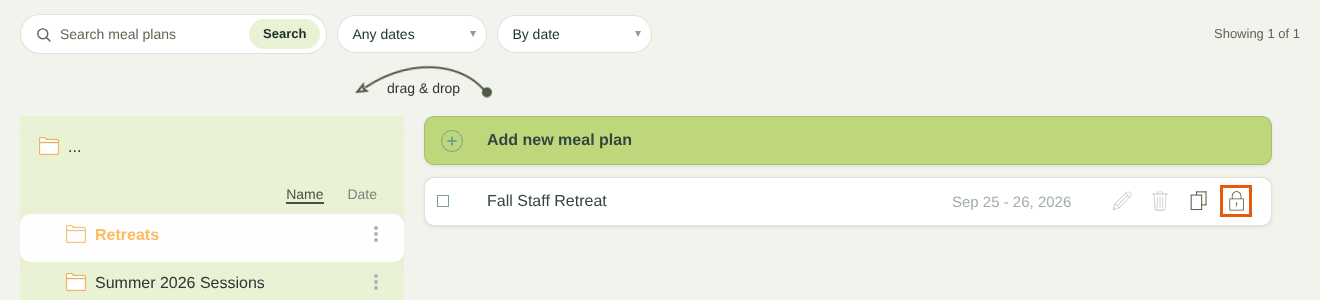
A locked meal plan
To unlock, click the padlock again and confirm with Unlock.
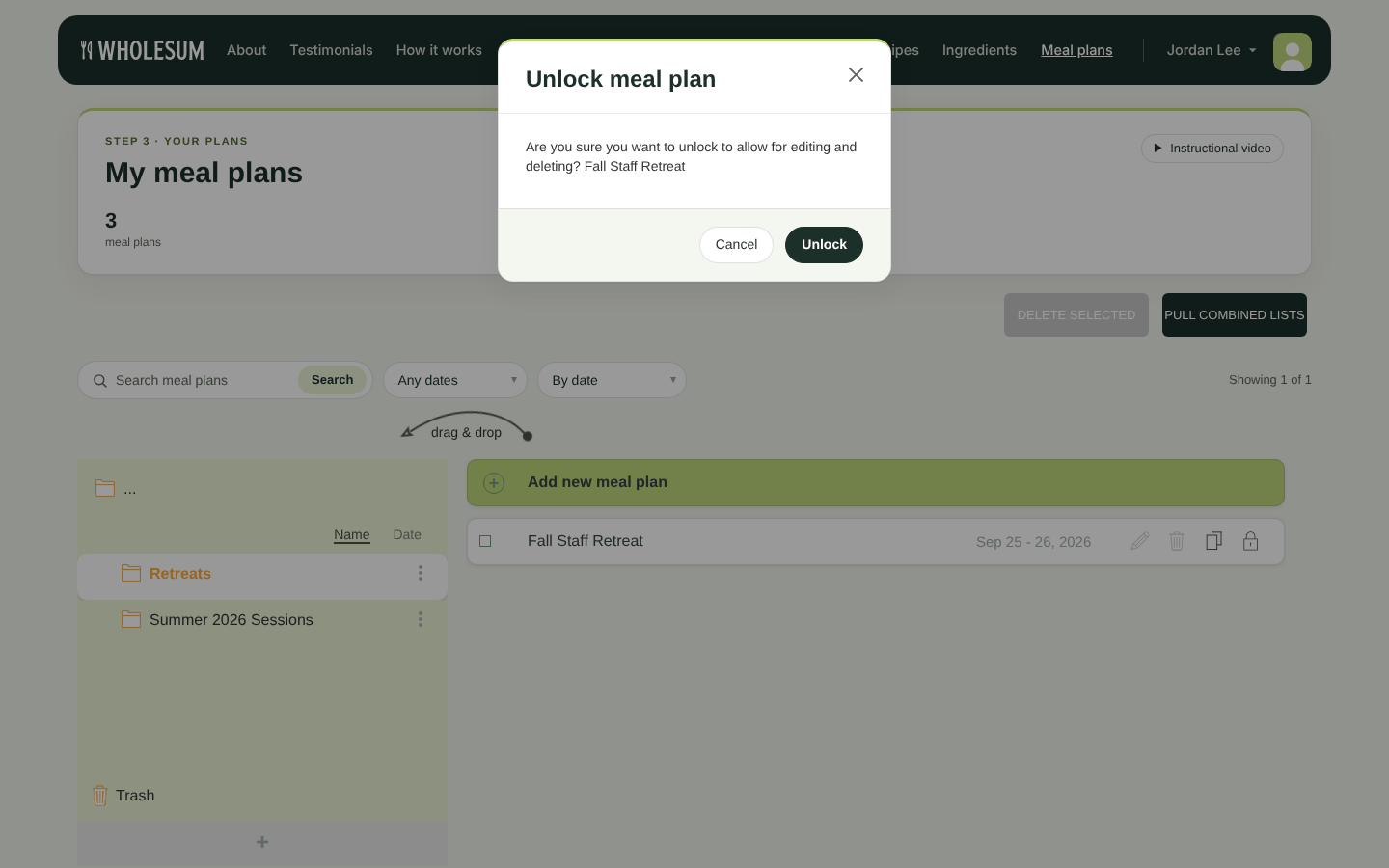
Unlocking a meal plan
You can still open, export and clone a locked plan. If someone tries to edit it, they see "Meal Plan 'name' is locked, unlock to change".
Clone a meal plan
Cloning is the fastest way to reuse a plan, for example running the same menu for next week's session.
- On Meal plans, click the copy icon on the plan.
- A copy named "plan name Copy" appears just below it.
The copy includes every meal, the appetite sizes and the dietary restrictions. It starts unlocked. Edit it to rename it and set new dates. Leave shift recipe dates with start date change ticked so every meal moves with the new start date.
Delete a meal plan
- Click the bin icon on the plan (or tick several plans and click Delete selected).
- Confirm.
The plan moves to Trash. You can also drag a plan onto Trash in the folder panel.
Restore from Trash
- Click Trash at the bottom of the folder panel.
- Click the restore icon (circular arrow) on the plan. To restore several at once, tick them and click Restore selected.
- Choose the folder to restore it to, or type a name to create a new folder.
- Click Restore.
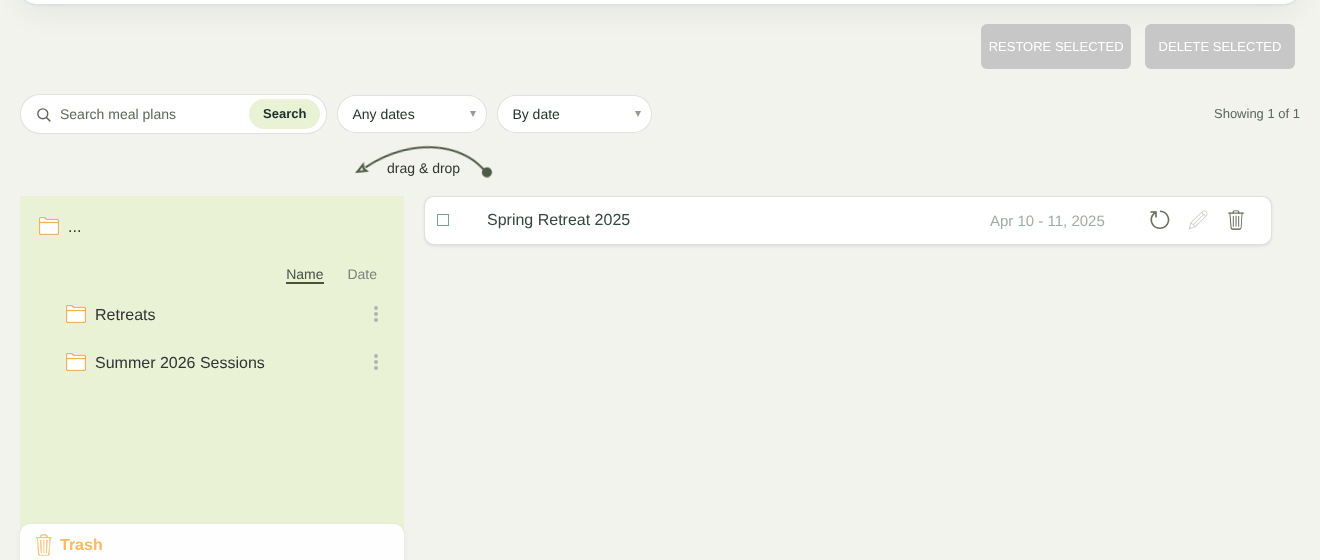
Plans in the Trash
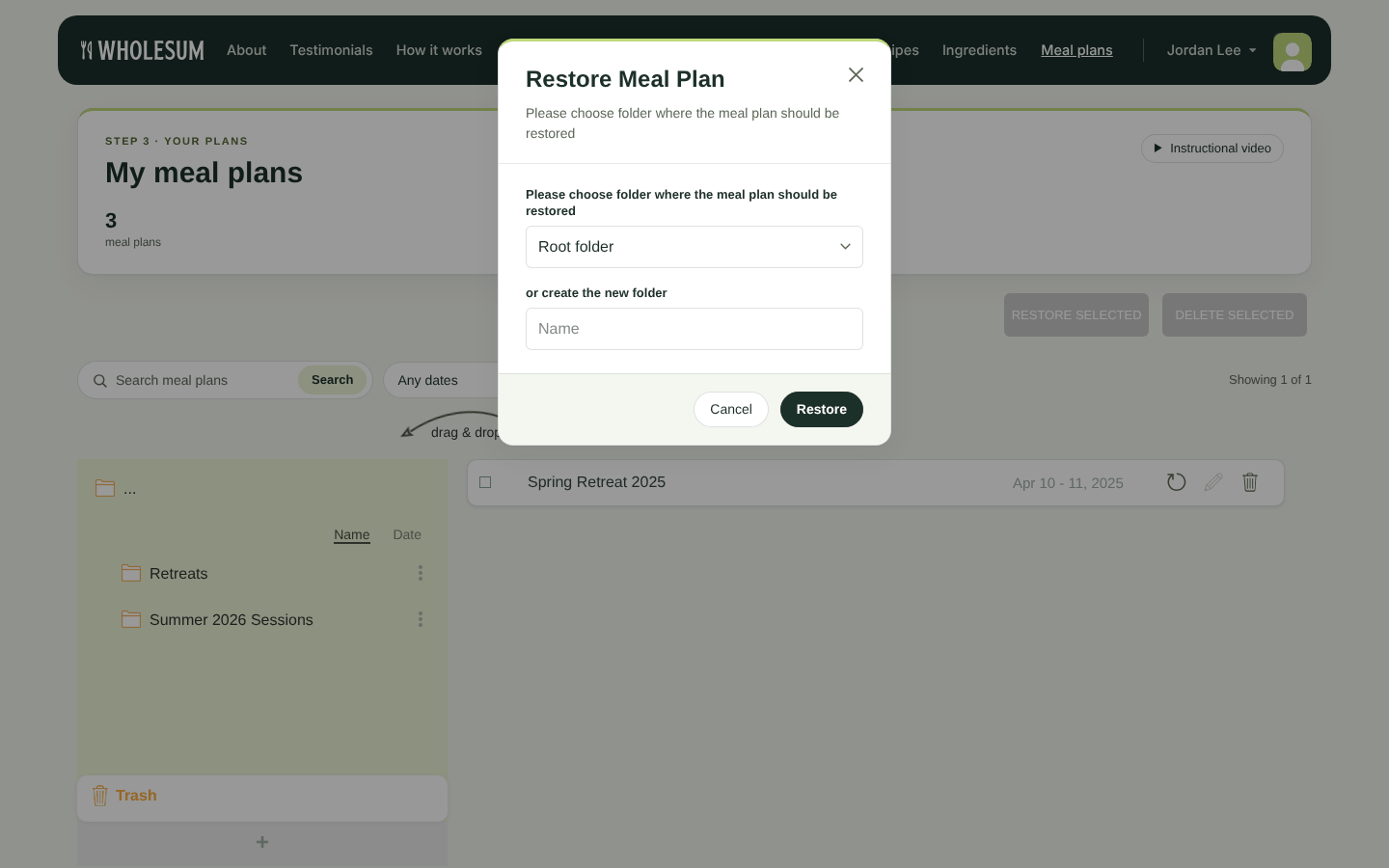
Choosing where to restore a plan
Delete permanently
To remove a plan for good, delete it again while it's in Trash. This can't be undone.


