
See all your meal plans on one calendar
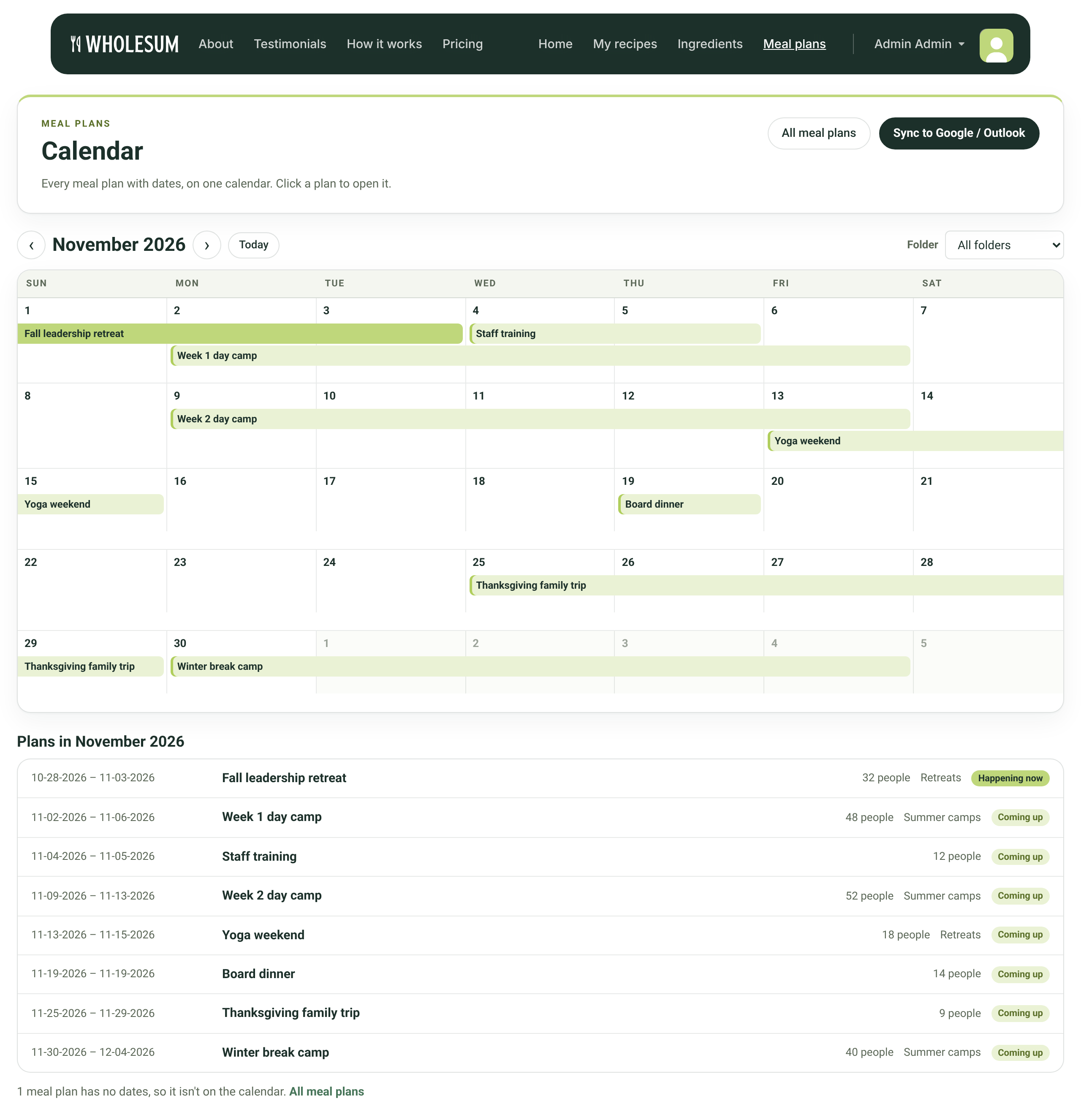
The Calendar shows every meal plan that has dates on one month view. Use it to spot overlapping camps, trips and events at a glance. You can also add your meal plans to Google Calendar, Outlook or Apple Calendar so they appear next to the rest of your schedule.
Open the calendar
There are two ways in:
- From Meal plans: click Calendar at the top of the Meal plans page.
- From a meal plan: open any plan and click Master calendar. The calendar opens on the month that plan starts in, with the plan highlighted. Click Back to [plan name] to return to it.
Reading the calendar
- Each meal plan appears as a bar running from its start date to its end date. Click a bar to open that plan.
- Use the ‹ and › arrows to move between months. Click Today to jump back to the current month.
- If you use folders, pick one from the Folder menu to show only the plans in it.
- If too many plans overlap on the same day to fit, you’ll see +1 more (or similar). Click it to jump to the list below the calendar.
- Under the calendar, Plans in [month] lists every plan for that month with its dates, number of people, folder and status: Happening now, Coming up or Finished. On a phone, this list is the easiest way to read the month.
The calendar is for viewing only. To change a plan’s dates, open the plan and click Edit.
Why isn’t my meal plan on the calendar?
Only meal plans with dates are shown. If some of your plans have no dates, a note under the list tells you how many. Click All meal plans in that note to find them. Plans in the trash aren’t shown either.
Add your meal plans to Google Calendar, Outlook or Apple Calendar
Click Sync to Google / Outlook at the top of the Calendar page. You’ll see your private calendar link. Subscribe to it once, and your calendar app keeps itself up to date as you add, move or delete meal plans.
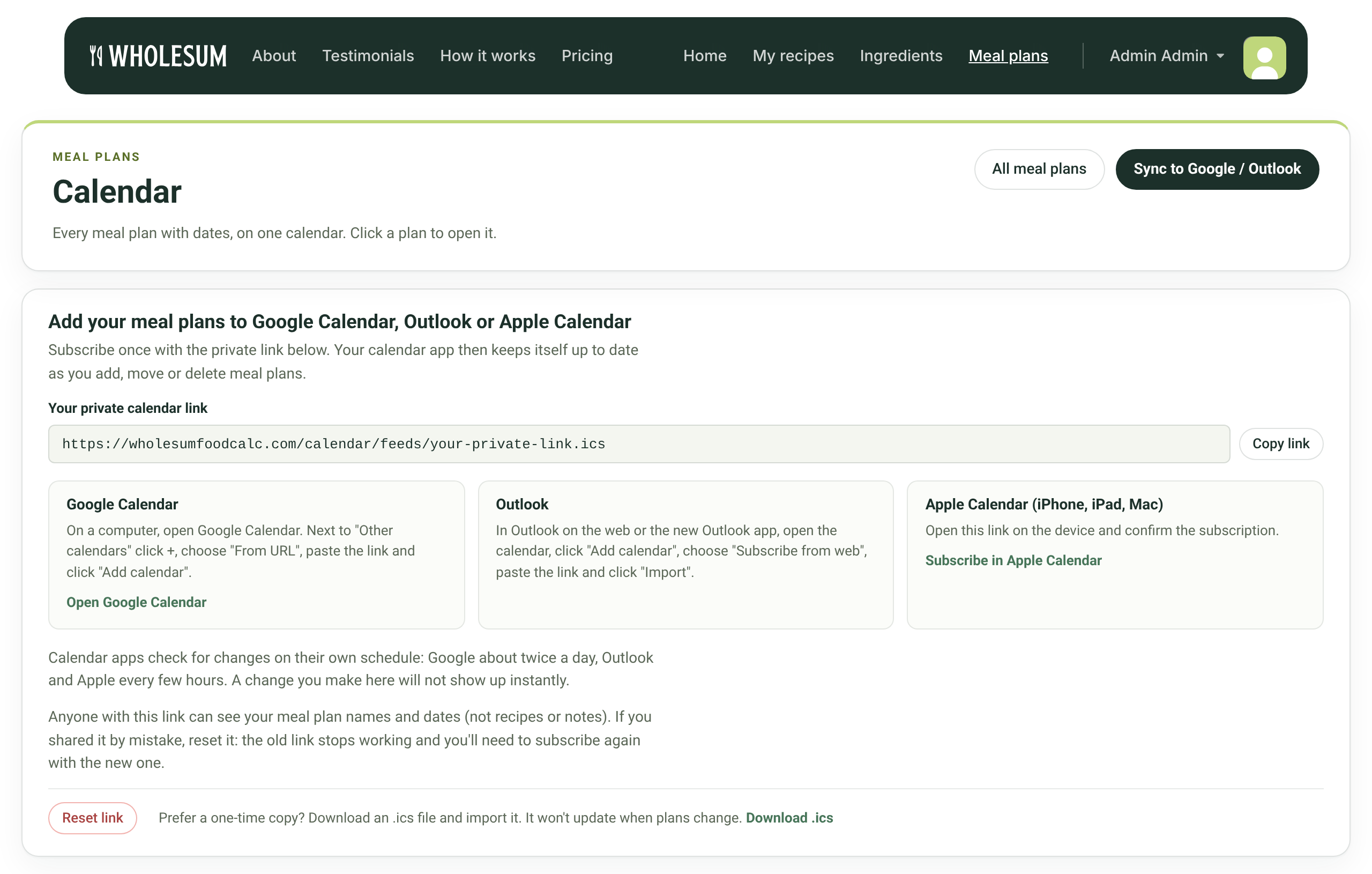
Click Copy link first, then follow the steps for your calendar app.
Google Calendar
- On a computer, open Google Calendar. (The Open Google Calendar link takes you straight to the right page.)
- Next to Other calendars, click + and choose From URL.
- Paste the link and click Add calendar.
Your meal plans will show on your phone too, as long as you’re signed in to the same Google account. You need a computer for the first setup, because the Google Calendar phone app can’t add a calendar from a link.
Outlook
- In Outlook on the web or the new Outlook app, open your calendar.
- Click Add calendar and choose Subscribe from web.
- Paste the link and click Import.
Apple Calendar (iPhone, iPad, Mac)
- Open the Wholesum Calendar page on the device and click Sync to Google / Outlook.
- Click Subscribe in Apple Calendar and confirm the subscription.
How quickly do changes show up?
Changes don’t appear instantly. Calendar apps check for updates on their own schedule: Google about twice a day, and Outlook and Apple every few hours. A plan you’ve just added or moved will show up after the next check.
What’s included
Each meal plan appears as an all-day event across its dates. The event shows the number of people, the folder (if any) and a link back to the plan in Wholesum. Recipes, shopping lists and notes are not included.
Keep your link private
Anyone who has your private link can see your meal plan names and dates. They can’t see recipes or notes. If you shared the link by mistake:
- Open the Calendar page and click Sync to Google / Outlook.
- Click Reset link and confirm.
The old link stops working straight away. Any calendar that used it will stop updating, so subscribe again with the new link.
Download a one-time copy
If you’d rather not subscribe, click Download .ics at the bottom of the sync panel and import the file into your calendar app. This is a one-time copy and won’t update when your plans change.
Team members
If you work in someone else’s account as a team member, the calendar shows the plans your access covers: the whole account, one folder or a single plan. Your private link is your own. If your access is removed, or the account’s subscription ends, the subscribed calendar will be empty after its next update.


