
Click Calendar on the Overview or the Trips page to open the calendar. It has two views: Month and Fleet.
Month
Every dated meal plan, and every trip with the days its gear is away, on one calendar.
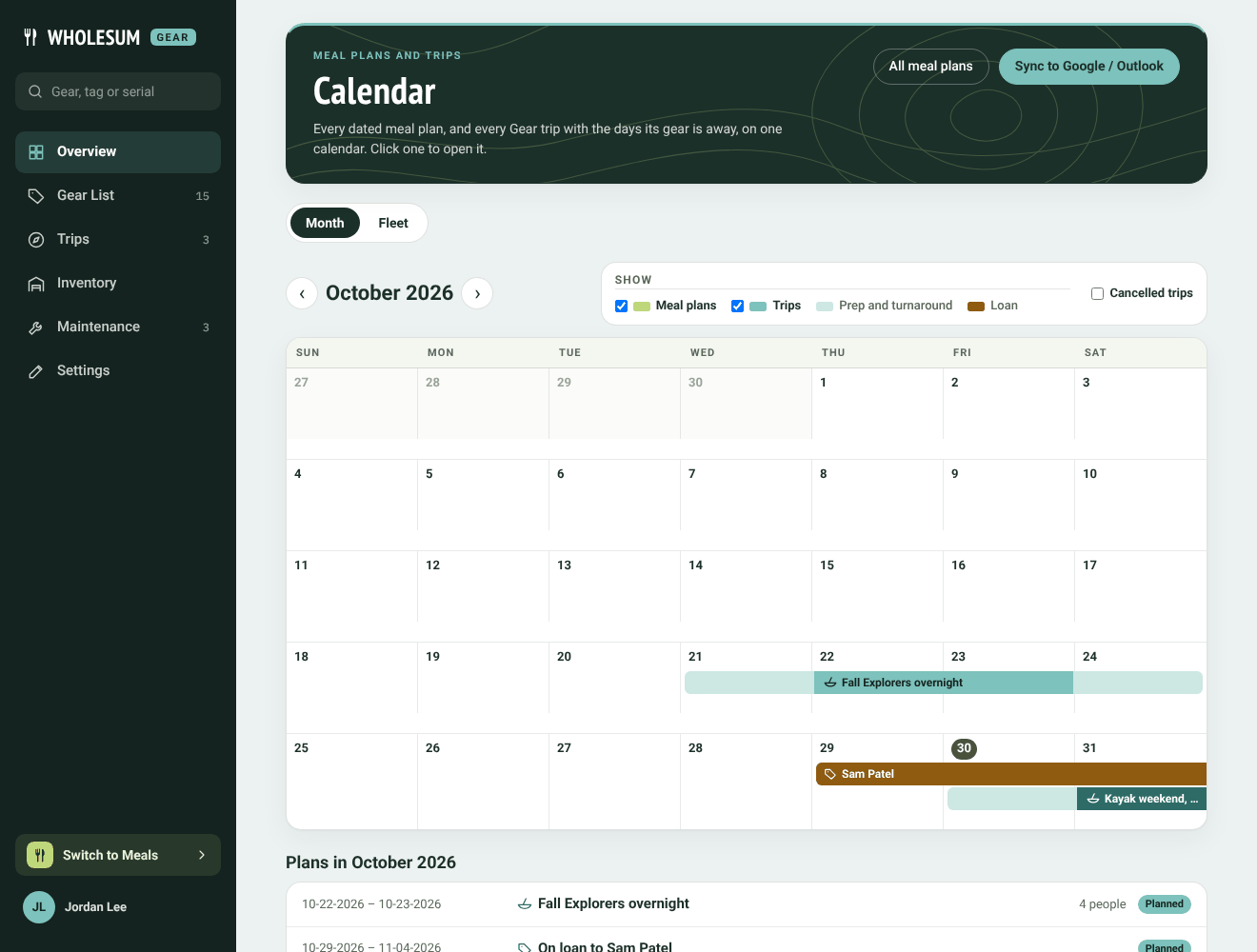
The calendar's Month view
- Each trip is a bar across its dates. The paler ends are its prep and turnaround days.
- A trip linked to a meal plan shows as one bar for both.
- Loans show too, in their own colour.
- Use the Show boxes to hide or show Meal plans, Trips, Prep and turnaround, Loans and Cancelled trips.
- Click a bar to open the trip or meal plan. The list under the calendar shows everything in that month.
Fleet
One row per kit bin and tracked unit, with a bar for every trip holding it. It's the quickest way to see when something is free: a gap in a row is a free day.
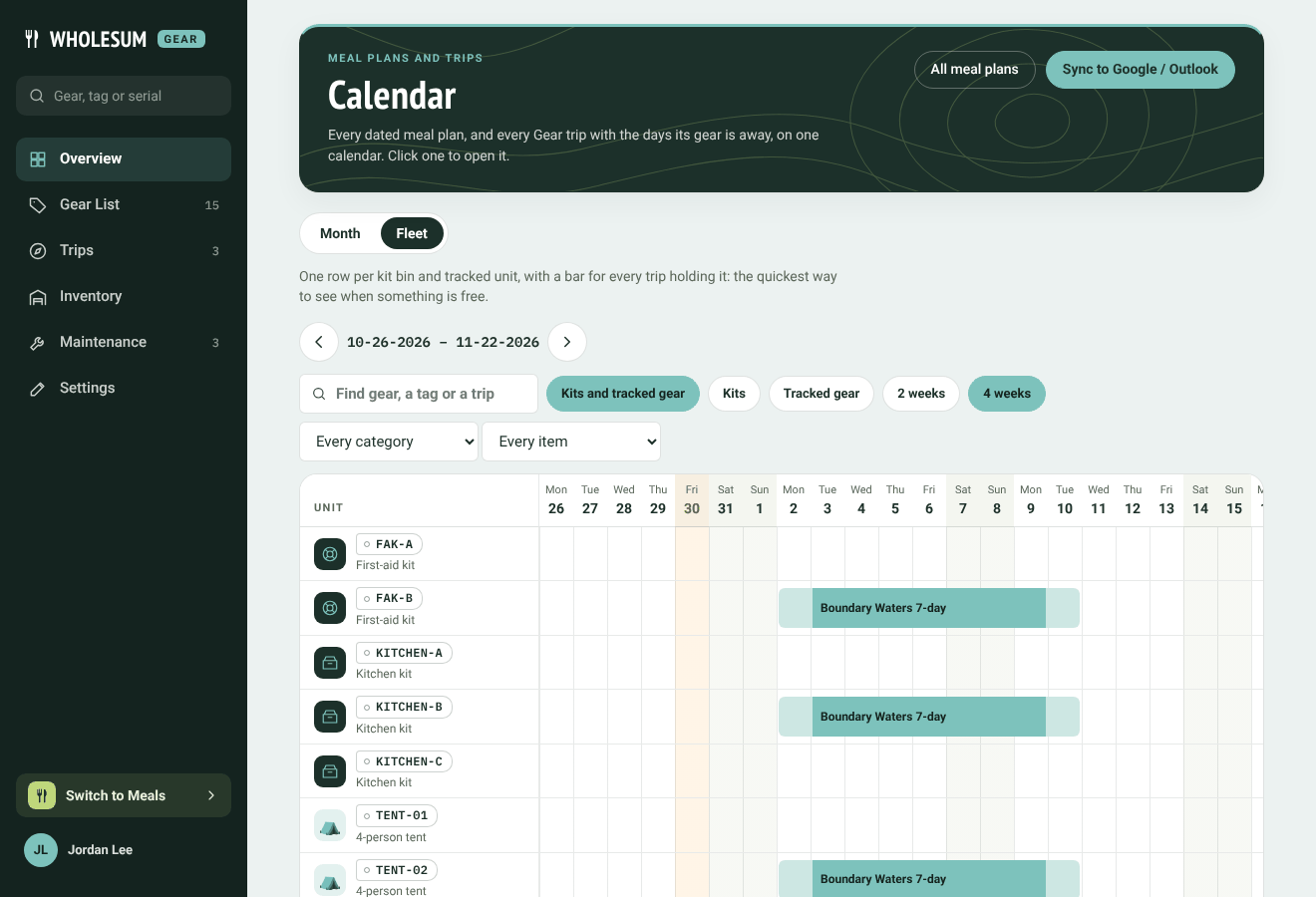
The Fleet view
- Move through time with the arrows, and choose 2 weeks or 4 weeks.
- Filter to Kits or Tracked gear, a category, or one item, or type a tag or trip name into Find gear, a tag or a trip.
- A unit packed in a bin shows the bin's trip, marked as held because its bin is.
Each item's page also has its own Fleet panel with just its units.
Adding trips to Google Calendar, Outlook or Apple Calendar
Click Sync to Google / Outlook for a private link to subscribe to. Your calendar app then keeps itself up to date with your meal plans and trips. Calendar apps check for changes on their own schedule, about twice a day for Google and every few hours for Outlook and Apple, so a change won't show up instantly.
Anyone with the link can see your plan and trip names and dates. If you shared it by mistake, click Reset link and subscribe again with the new one.


