
The Packing list on a trip's page is what the trip needs. For tracked gear and kits, you also pick which units go, and those units are held for the trip.
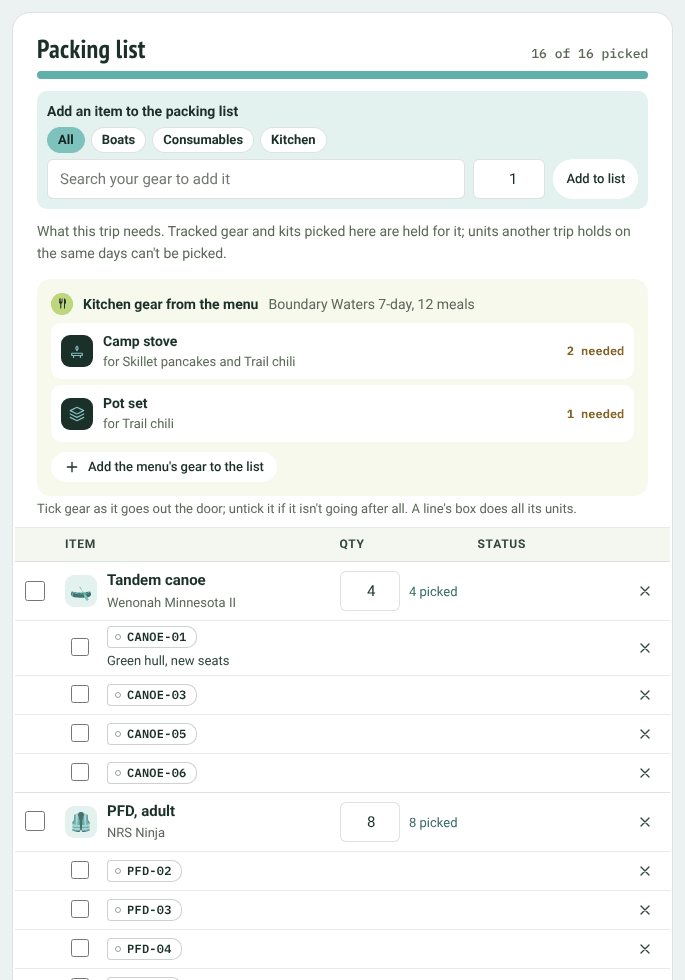
A trip's packing list
Adding gear
Use Add an item to the packing list at the top (it's repeated at the bottom of long lists). Start typing in Search your gear to add it, or click a category pill to browse. Each item shows how many are free over the trip's days. Set how many and click Add to list.
Free means not held by another planned trip over this trip's dates, including its prep and turnaround days.
You can also fill the list from a template. See Applying a template below.
Picking units
For tracked gear and kits, each line shows how many are needed and how many are picked. Below the line are the units picked for it.
- Pick everything available (in the Actions panel) picks free units for every line that's still short, starting with units at the trip's own base. What's already picked stays.
- Pick for me on a single line does the same for that line only.
- To pick a particular unit, choose it from the line's Choose a … list. It's picked as soon as you choose it.
- Click × next to a unit to put it back.
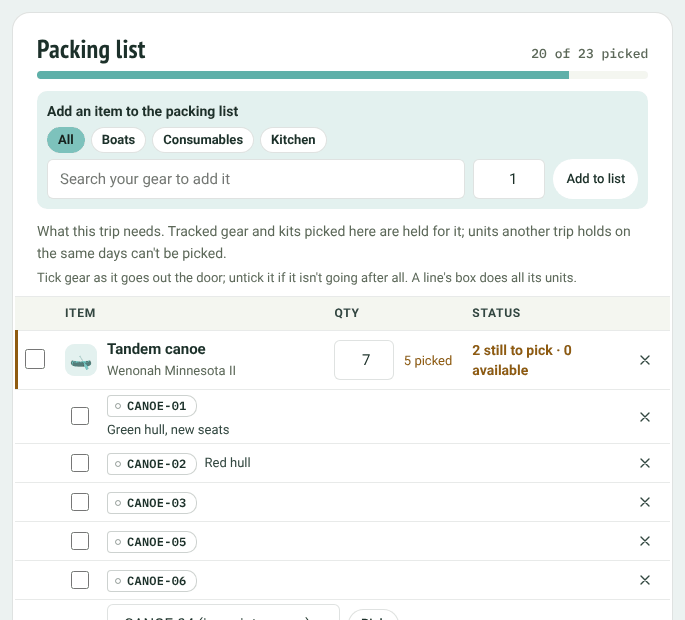
A line still short of canoes
A line that's short is marked in orange, for example 2 still to pick · 0 available. If every unit is booked by other trips over these days, it says so. Units in for repair or packed in a bin can still be picked by hand.
Clashes. A unit can only be held by one trip at a time. If two trips end up sharing a unit (for example after one trip's dates change), both trips show Clashes with and the Overview lists it under Needs attention. Put the unit back on one of them.
Counted gear and consumables
For counted gear (paddles, sporks, dry bags) and consumables (fuel), you just set the number. Gear shows how many are free over the trip's days. If there aren't enough, the line says, for example, Needs 56; only 18 free over these days, with a link to Inventory.
Changing or removing a line
Change the number in the Qty box; it saves as soon as you click away. Click × at the end of the line to remove it; anything picked for it is put back. A line can't be removed while its gear is out.
Applying a template
The Actions panel holds the trip's tools:
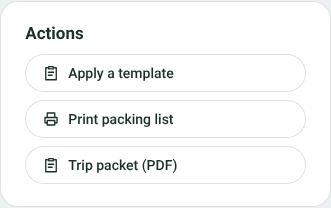
The Actions panel
Click Apply a template, choose one and click Apply template.
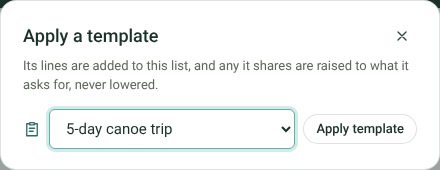
Applying a template
The template's lines are scaled to this trip's headcount and length and added to the list. Lines already on the list are raised to what the template asks for, never lowered, so you can apply more than one template (the button then reads Apply another template). See Packing templates.
Kitchen gear from the menu
If the trip is linked to a meal plan whose recipes list equipment, a Kitchen gear from the menu box appears above the list. Click Add the menu's gear to the list. See Gear for meal planners: recipe equipment and linked meal plans.
Printing
Print packing list opens a printable checklist, with boxes to tick and lines for Packed by, Checked by and the date. Trip packet (PDF) gives you everything in one PDF. See Trip packet, printed packing list, notes and activity.
Ticking gear out
The tick boxes down the left of the list check gear out as it leaves. See Checking gear out.


