
When a trip's gear leaves the building, check it out. Gear then shows it as out on that trip until it's checked back in. Counted gear comes off the shelf in Inventory.
There are three ways to check gear out. Use whichever suits you; they all do the same thing.
1. All at once: Check out gear
On the trip's page, click Check out gear.
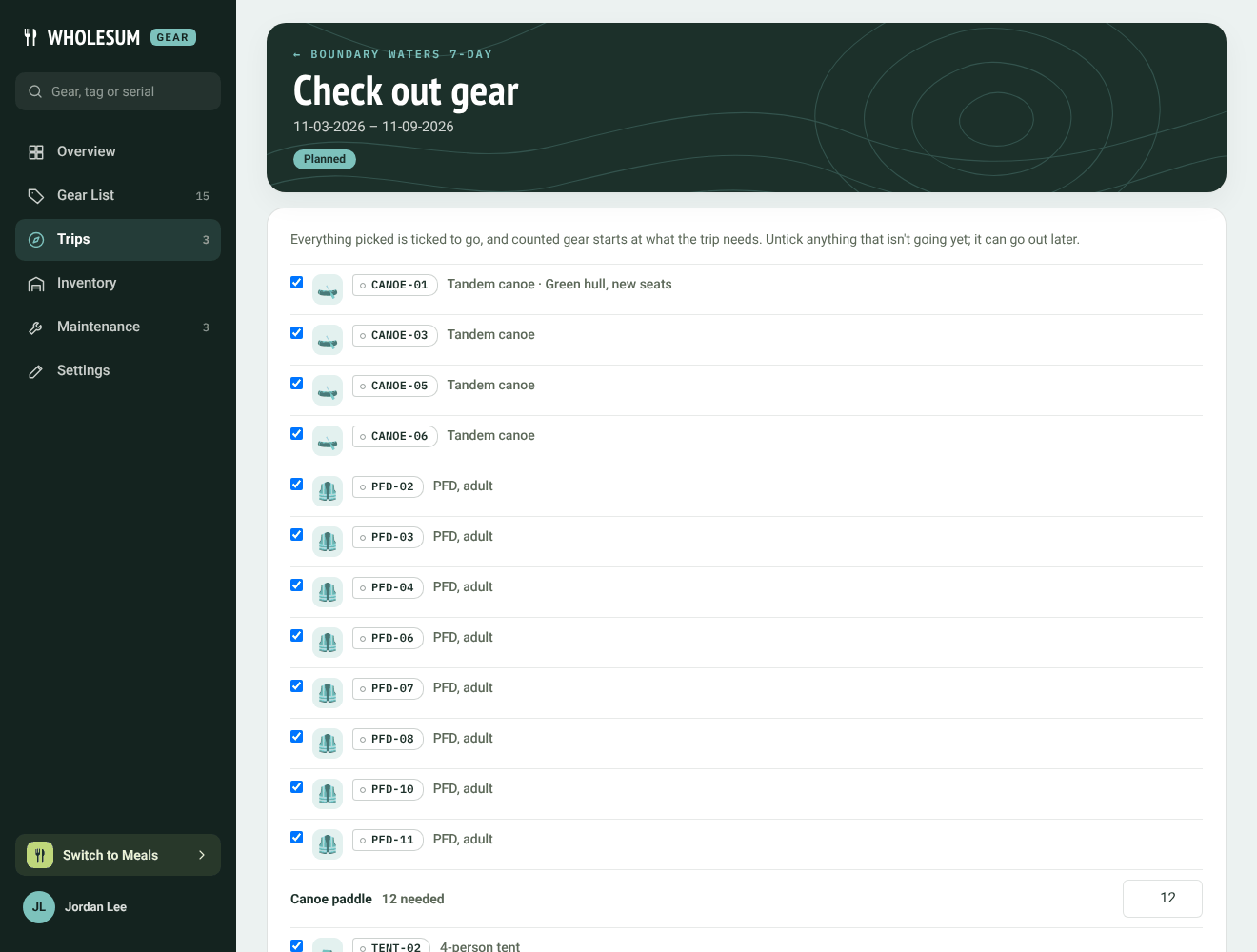
The Check out gear page
Everything picked is ticked to go, and counted gear starts at the number the trip needs. Untick anything that isn't going yet, or change a count, then click Check out at the bottom.
- If the list is still short, a warning says what's missing. The trip can go without it.
- A unit that's in maintenance, retired or lost, or that another trip hasn't brought back, stays behind. Gear tells you which and why.
- Anything you leave unticked can go out later the same way.
2. As you load: tick the packing list
On the trip's page, the boxes down the left of the packing list check gear out as you tick them. Tick a unit to send that one, or tick a line to send all its units. Untick it if it isn't going after all.
3. From a QR label
If your gear has QR labels, scanning one with a phone opens a page with Check it out for the trip it's picked for. See QR labels.
After check-out
- The trip's header shows Gear out next to Planned, and the Overview counts the units under Gear out.
- A kit bin goes out with everything packed in it.
- Each check-out is recorded in the trip's Notes and activity.
Undoing a check-out
Untick the unit or line on the trip's packing list. It goes back to being picked but not out, and counted gear goes back on the shelf.


