
A trip in Gear holds the gear it needs for its dates, so no other trip can book the same canoe. Go to Trips in the Gear menu.
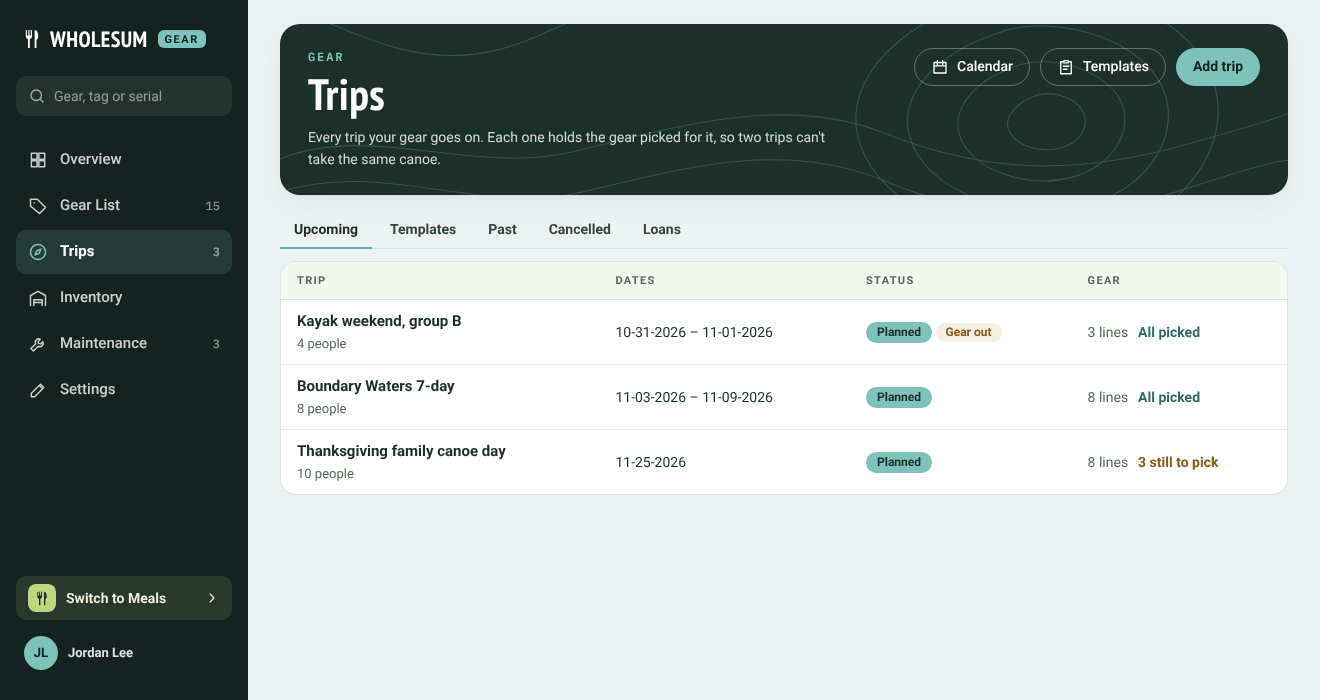
The Trips page
The tabs show Upcoming, Templates, Past, Cancelled and Loans. Each trip shows its dates, status, and how much of its packing list is picked (for example All picked or 2 still to pick). On a phone, each trip shows as a card.
Adding a trip
Click Add trip (or New trip on the Overview).
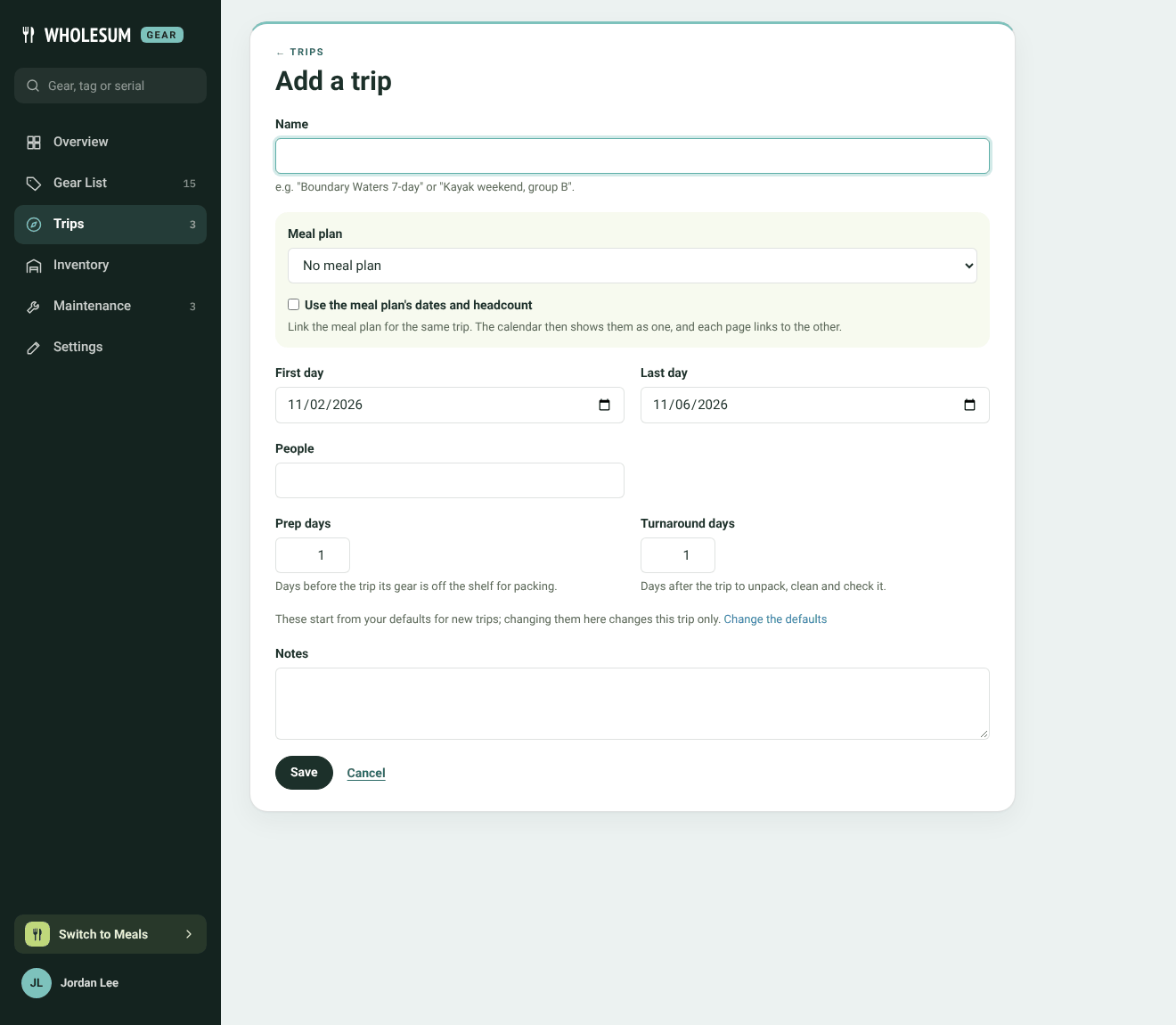
The Add a trip form
- Name: for example Boundary Waters 7-day or Kayak weekend, group B.
- Meal plan: if you plan the trip's meals in Wholesum, pick its meal plan here. Tick Use the meal plan's dates and headcount to copy them. The calendar then shows the two as one, and each page links to the other. See Gear for meal planners: recipe equipment and linked meal plans.
- First day and Last day.
- People: the headcount. Templates use it to work out how much gear the trip needs.
- Base: where the trip leaves from (only if you use more than one base).
- Prep days: days before the trip that its gear is off the shelf for packing.
- Turnaround days: days after the trip to unpack, clean and check the gear.
- Notes.
Prep and turnaround days start from your defaults (set in Gear's Settings → New trips). Changing them here changes this trip only.
Click Save. The trip is created as Planned and opens on its page, ready for its packing list.
The trip page
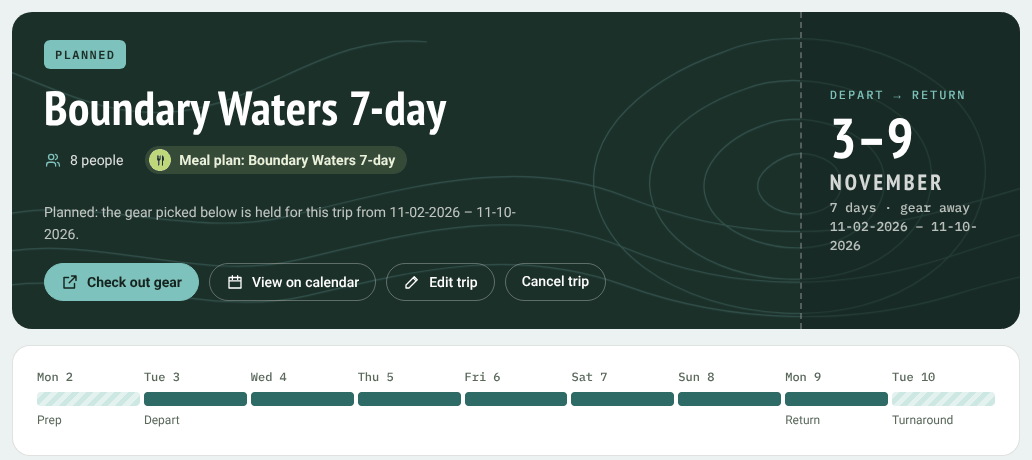
The top of a trip's page
- The dark header shows the trip's status, headcount, linked meal plan and dates. The note under the name says which days the gear is held: the trip's dates plus its prep and turnaround days.
- The strip below it shows each day: Prep, Depart, Return and Turnaround.
- The buttons let you Check out gear, View on calendar, Edit trip and Cancel trip.
- Below are the Packing list (see Building a trip's packing list), an Actions panel, the trip's Details, and Notes and activity.
Cancelling, reopening and deleting
- Cancel trip releases all its gear straight away. The trip and its list are kept under the Cancelled tab, and Reopen trip plans it again (as long as the gear it had picked hasn't been booked by another trip since).
- A trip whose gear has never been checked out can be deleted from Edit trip → Delete trip. Once gear has gone out, the trip keeps its record: cancel it instead.
- A trip can't be cancelled while any of its gear is still out. Check it back in first.
Changing the dates
Use Edit trip. If the new dates would make a picked unit overlap with another trip that holds it, Gear refuses the change and tells you which unit. Put that unit back on one of the trips first.


