
Cookbooks are curated collections of expedition recipes, built and tested by professionals in the outdoor industry. Instead of building your recipe library one recipe at a time, you can browse a cookbook and add recipes, one by one or all at once, straight into My recipes.
Cookbooks are especially useful when you're new to Wholesum, when you're moving over from paper or spreadsheets, or any time you want proven, trip-tested meals as a starting point. Everything you add becomes your own recipe: rename it, change the servings, swap ingredients and add tags just like a recipe you built yourself.
Where to find Cookbooks
- On your Home page, click Cookbooks in the quick links at the bottom.
- Or go to My recipes, click Create new recipe and choose Browse Cookbooks.
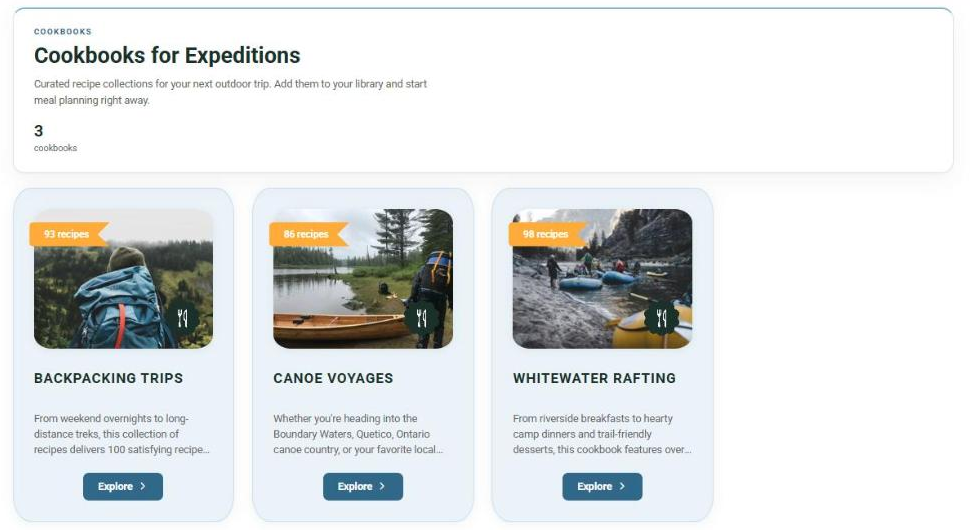
The Cookbooks page
What's inside
- Backpacking Trips: lightweight, calorie-dense, shelf-stable meals for weekend overnights through long-distance treks.
- Canoe Voyages: practical meals for multi-day paddling trips, from the Boundary Waters and Quetico to your local river.
- Whitewater Rafting: hearty riverside breakfasts, camp dinners, sides and desserts for multi-day river trips, family floats and guided expeditions.
Each cookbook holds roughly 85 to 100 recipes across breakfast, lunch, dinner, snacks, desserts and drinks, with realistic portions and instructions written for a camp kitchen.
Browsing a cookbook
Click Explore on a cookbook to open it. Use the Category and Tag filters or Search Recipe to narrow the list. Click a recipe's name to see its ingredients, quantities, substitutes, servings, dietary information and instructions before you add it.
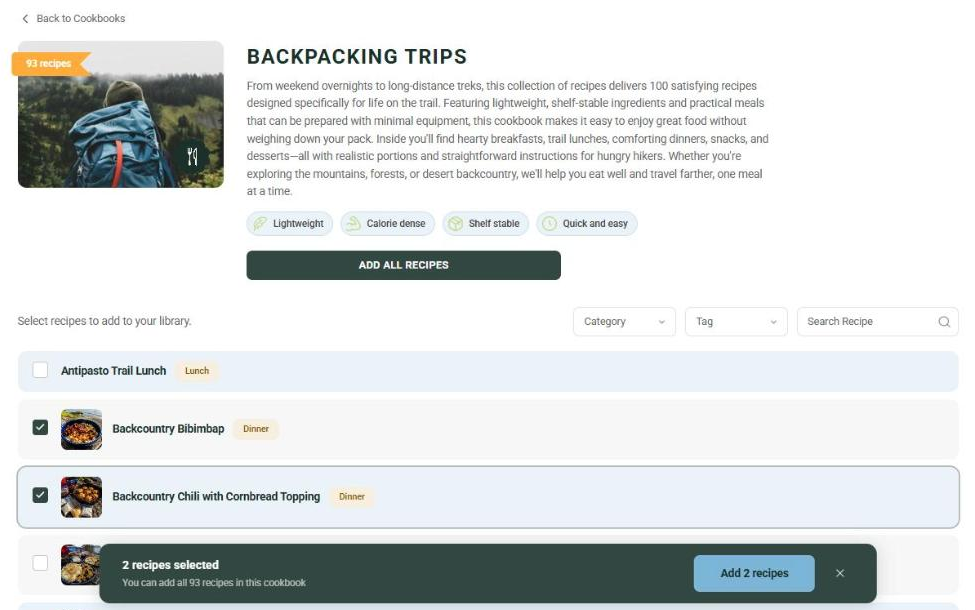
Choosing recipes from a cookbook
Adding recipes
- The whole cookbook: click ADD ALL RECIPES at the top of the cookbook.
- A selection: tick the recipes you want, then click Add N recipes in the bar at the bottom of the screen. Tip: filter to one category first, for example Breakfast, and tick the ones you like.
- One recipe: open the recipe and click Save Recipe.
Confirm with Add recipes. The recipes are added in the background, and within a few moments they appear in My recipes with a cookbook badge. Refresh the page if you don't see them yet. Recipes you've already added show Added and aren't copied twice.
Tidy up your ingredients afterwards
Wholesum matches each cookbook ingredient to one of your existing ingredients where it can, so your prices and stores carry over. Where it can't find a match, it creates a new ingredient. If you already have recipes from other sources, you may end up with two ingredients for the same thing, such as Cheddar and Cheddar Cheese.
Duplicates don't break anything, but they split your shopping list and costs across two lines. To combine them:
- Go to Ingredients.
- Next to Check for duplicate ingredients, click Check, then Review.
- For each group, choose the ingredient to Keep and click Merge, or click Not duplicates.
See Finding and merging duplicate ingredients for the details. You only need to do this once after adding a cookbook, not every time you plan a trip.
Tips
- Start with one cookbook. Adding all three gives you nearly 280 recipes to sort through. Start with the one that matches the trips you run most.
- Merge duplicates before you build a meal plan, so your shopping lists are accurate from your very first menu.
- Add your prices and stores. Cookbook recipes arrive without your prices or store details. Add them on the Ingredients page.
- Use the tags. Cookbook recipes are tagged by trip type, so you can filter My recipes to just backpacking or rafting meals.
- Edit freely. These recipes are starting points. Change servings, ingredients and instructions to match how you cook.


