
Tags are your own labels for recipes, such as Campfire, Kid-Friendly or Gluten-Free. You add them at the bottom of each recipe. You can then filter My recipes, and the recipe list inside a meal plan, by tag.
To tidy up all your tags at once, use Manage tags.
Open Manage tags
- Click your name (top right) and choose Settings.
- Under Recipes & ingredients, find Recipe tags and click Manage.
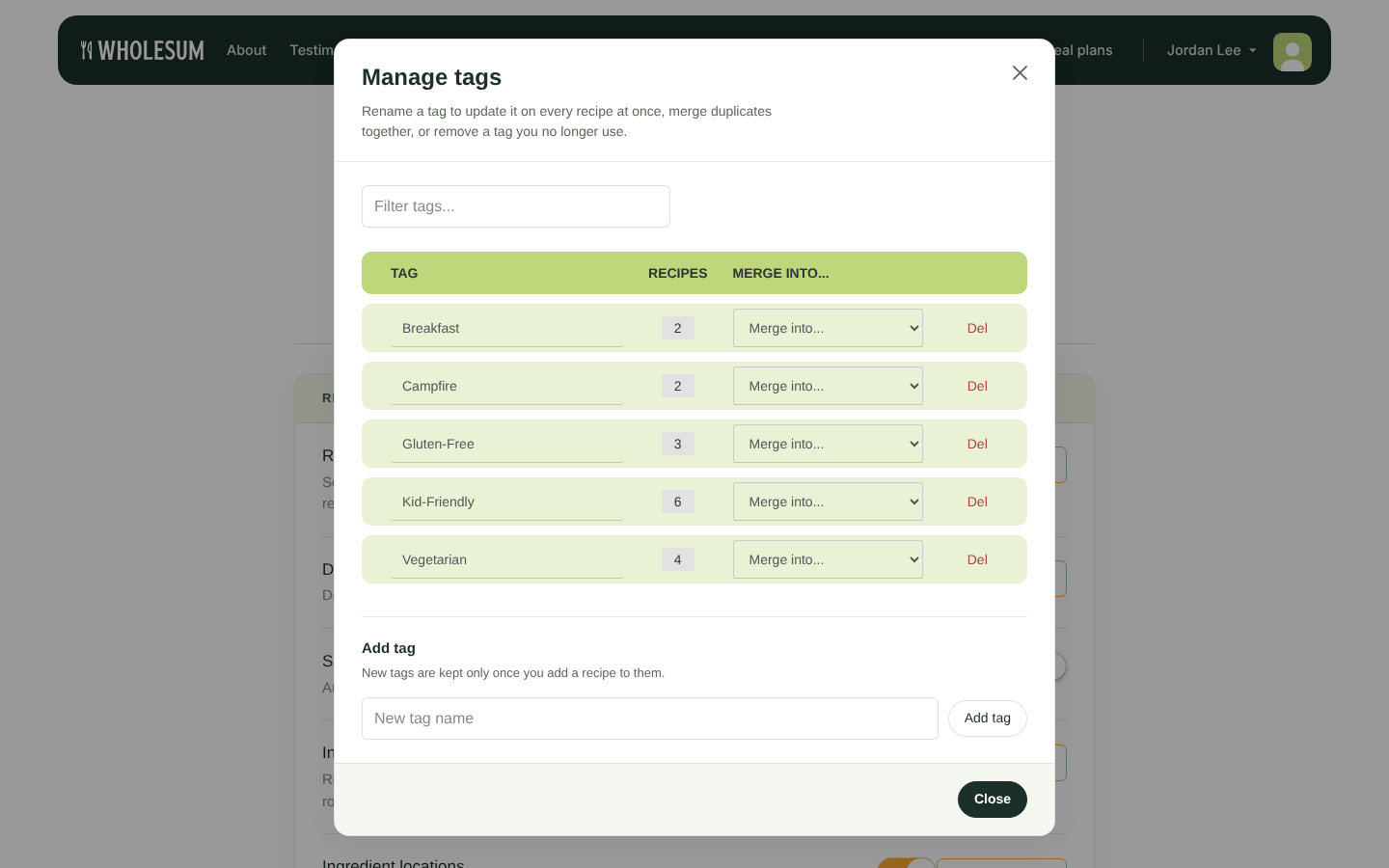
The Manage tags window
The list shows every tag and how many recipes use it. Type in Filter tags... to find one.
Rename a tag
Click the tag's name, type the new name and press Enter, or click elsewhere. The new name appears on every recipe that had the tag.
If you rename a tag to a name that already exists, Wholesum offers to merge the two tags.
Merge two tags
Pick a tag under Merge into... on the row of the tag you want to get rid of. Its recipes move to the tag you chose, and the old tag is removed. This happens straight away, with no confirmation, so choose carefully.
Delete a tag
Click Del and confirm. The tag is removed from every recipe. The recipes themselves aren't deleted.
See or change which recipes have a tag
Click the number in the Recipes column.
- Click ✕ on a recipe to take the tag off it.
- Use Search recipes to add... (type at least 3 letters) to put the tag on more recipes.
If you remove a tag from its last recipe, the tag is deleted.
Add a new tag
Type a name under Add tag and click Add tag. Then add at least one recipe to it straight away: tags without any recipes are cleaned up automatically.
Good to know
- Renaming, merging and deleting tags happen straight away and can't be undone. If you change your mind after a merge, add the tag back and put it on the right recipes.
- If team members work in your account, you all share one set of tags, so a tidy-up by one of you is a tidy-up for everyone.
- A tidy tag list means a shorter, clearer filter on My recipes and less hunting when you choose recipes for a meal plan.


