
Some gear needs checking regularly: PFDs every year, tents re-proofed every 10 uses. An inspection schedule makes each unit come due by date, by use, or both.
Adding a schedule
Inspections are set per item. Open a tracked item in the Gear List and scroll to Inspections. Click Add an inspection.
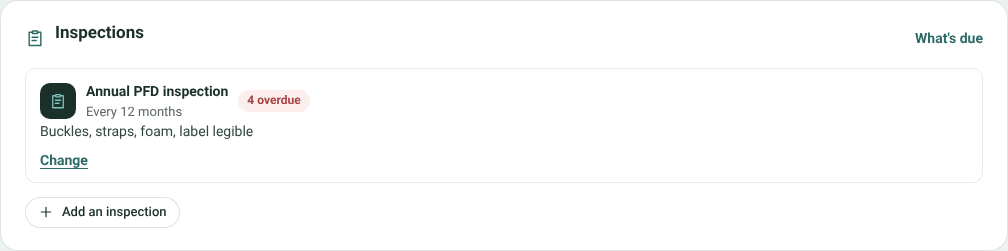
An item's inspection schedules
- Inspection: its name, for example Annual PFD inspection.
- Every how many months and/or Every how many uses. Fill in one or both. With both, it's due at whichever comes first. A use is a trip the unit came back from.
- What to check: a checklist, for example Buckles, straps, foam, label legible.
Each unit counts from its last inspection, or from when it was bought. The schedule shows how many units are overdue; Change edits it and Remove deletes it (with its past inspections).
What's due
Go to Maintenance → Inspections due.
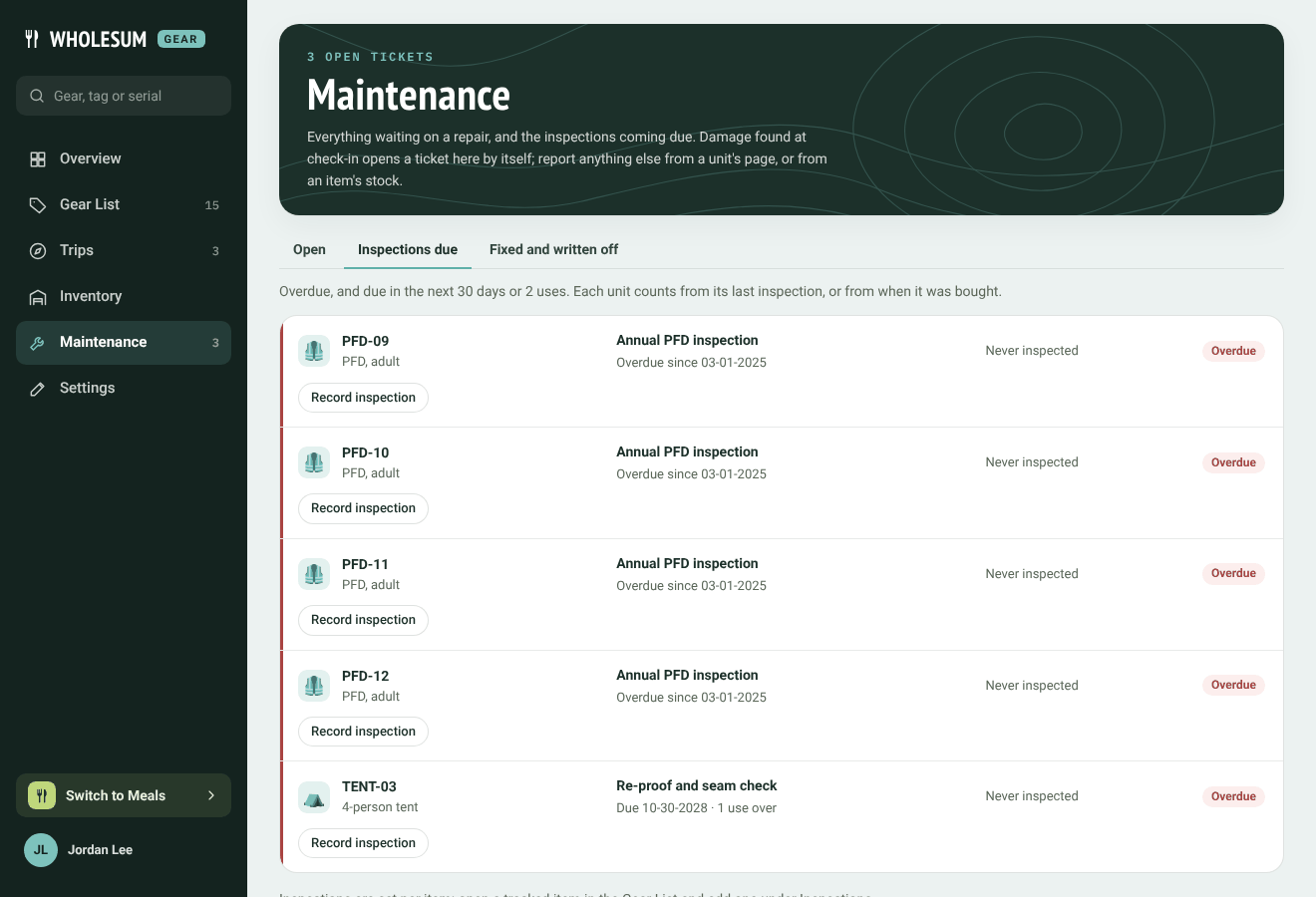
Inspections due
The list shows every unit that's overdue, or due in the next 30 days or 2 uses, with the date or uses left and when it was last done. Overdue inspections also appear under Needs attention on the Overview.
Recording an inspection
Click Record inspection on a unit in the list, or on the unit's own page. Choose Passed or Failed, the date and a note, and click Save inspection.
- Passed: the unit's next inspection is worked out from today.
- Failed: a repair ticket opens and the unit is taken out of service until it's fixed. See Maintenance and repair tickets.
Each unit's page shows its next inspection and its inspection history.


