
If your gear is already in a spreadsheet, you can bring it all into Gear at once. You can also export the whole gear list, change it in Excel and import it again to update many items together.
Go to Gear List and click Import or export.
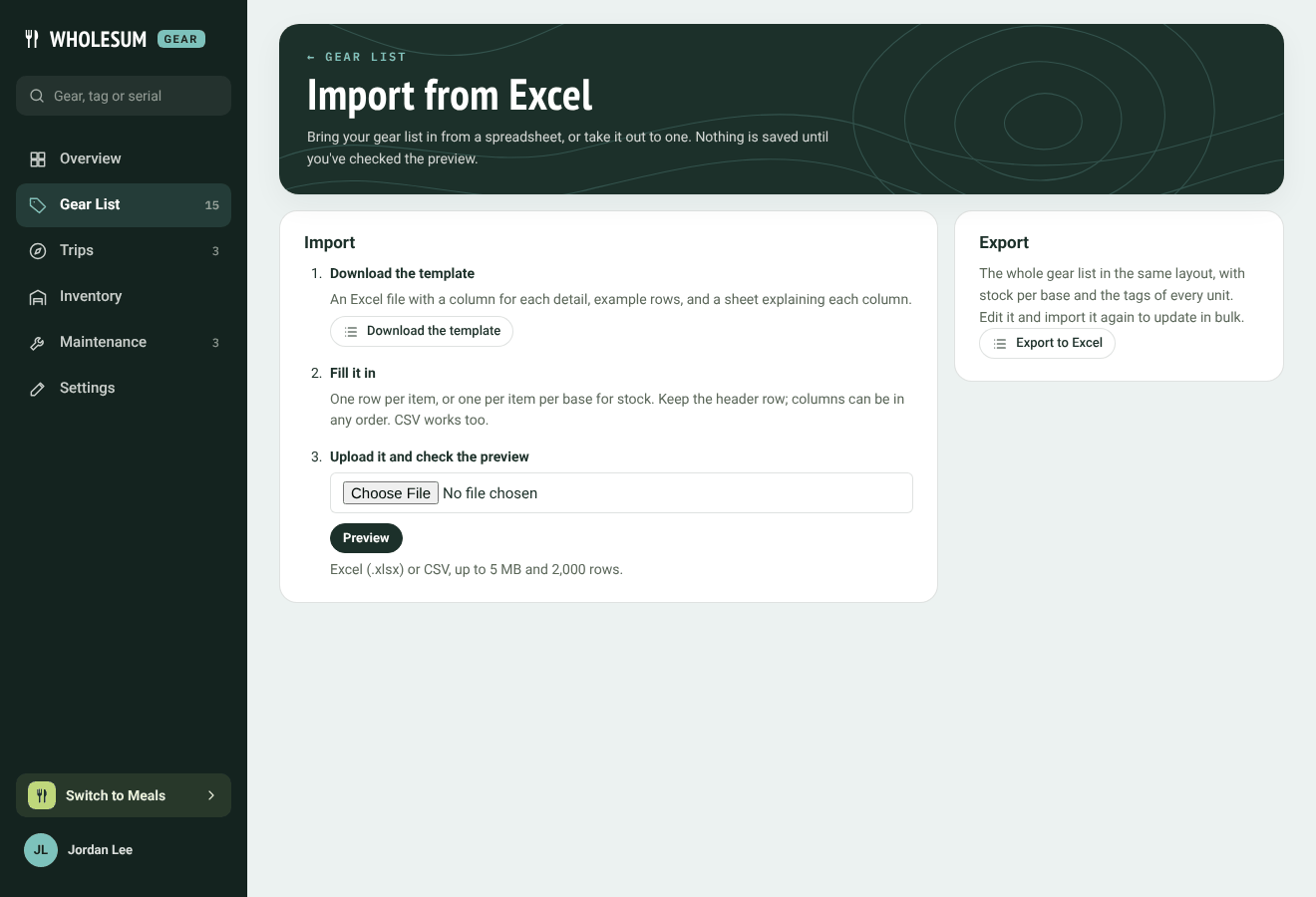
The Import from Excel page
Importing
- Download the template. It's an Excel file with a column for each detail, a few example rows, and a second sheet explaining every column.
- Fill it in. One row per item. Keep the header row; the columns can be in any order. A CSV file works too.
- Upload it and click Preview. Excel (.xlsx) or CSV, up to 5 MB and 2,000 rows.
The columns
| Column | What to put |
|---|---|
| Name | Always needed. If it matches an item already in Gear (capitals don't matter), that item is updated. |
| Tracking | Needed for a new item: Tracked, Counted, Consumable or Kit. |
| Category, Make, Model, Size or variant, Notes | Anything you like. |
| Vendor | Where you usually buy it. A vendor that doesn't exist yet is created. |
| Reorder point | For counted and consumable gear. |
| Lifespan (months) | How long it usually lasts. |
| Emoji | One emoji for its picture, for example 🛶. |
| Base | Which base this row's count or tags belong to. Blank means your first base. |
| Quantity on shelf | For counted and consumable gear: how many are on the shelf. This sets the count, recorded as a stocktake. |
| Asset tags | For tracked gear and kit bins: the tags of the units, separated by commas. New tags add units. |
| Serial numbers | Optional, in the same order as the asset tags. |
Tips:
- Rows whose name starts with "Example:" are skipped, so you can leave the template's examples in.
- A blank cell leaves what's already in Gear alone.
- To give a counted item stock at more than one base, repeat its name on another row with the other base and its count.
- What goes inside a kit isn't imported. Add that on the kit's page afterwards.
Checking the preview
Nothing is saved until you've checked the preview. It lists every row and what will happen to it: New, Update (with each change shown), No change, or Skipped with the reason.
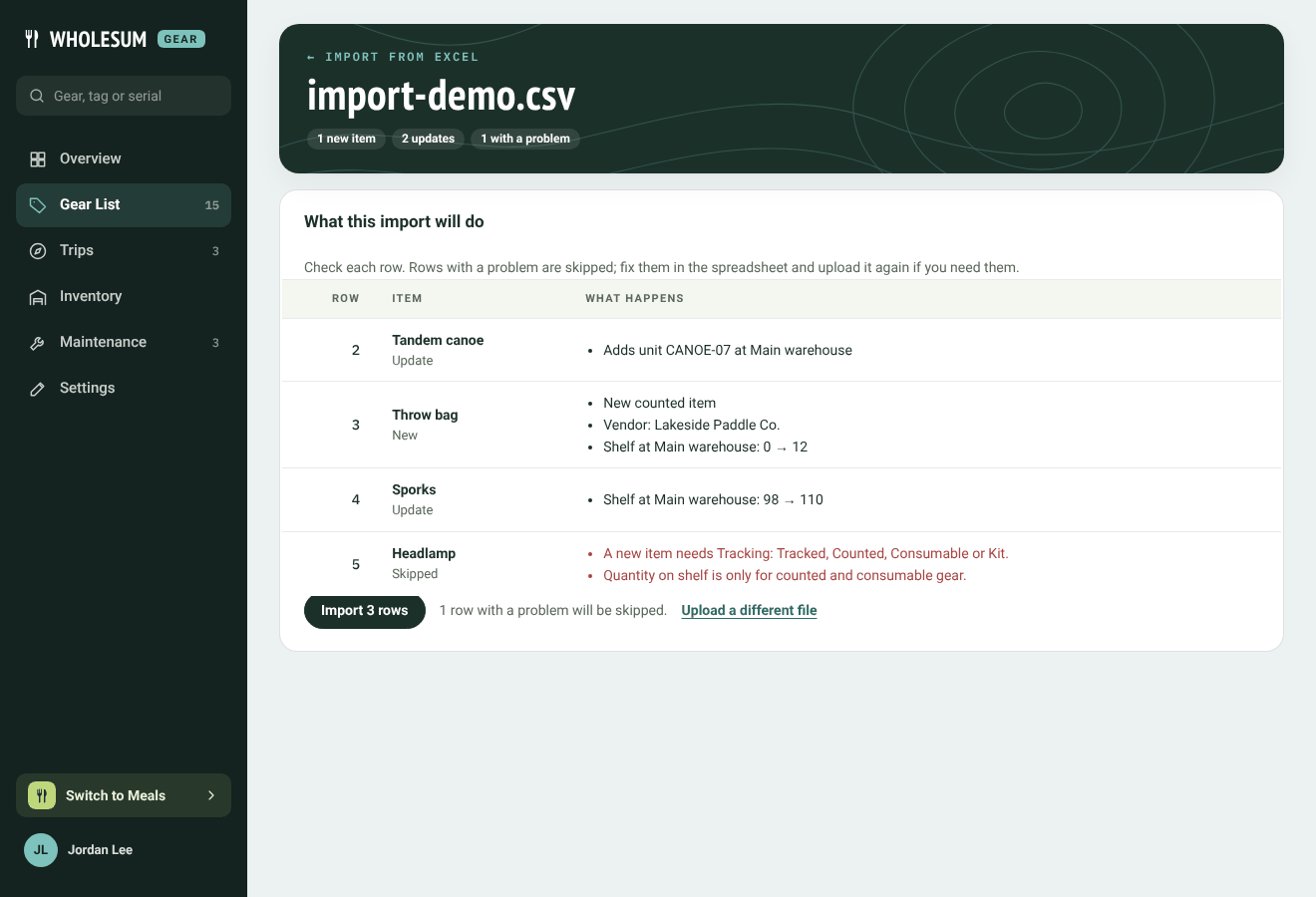
The import preview
Rows with a problem are skipped. Fix them in the spreadsheet and click Upload a different file, or go ahead and click Import to bring in the rest.
Exporting
On the same page, Export to Excel downloads your whole gear list in the same layout, with the stock at each base and the tags of every unit. Edit it and import it again to update in bulk.


