
To add one item, go to Gear List and click Add item (or Add kit for a kit). To add many at once from a spreadsheet, see Importing and exporting your gear list (Excel).
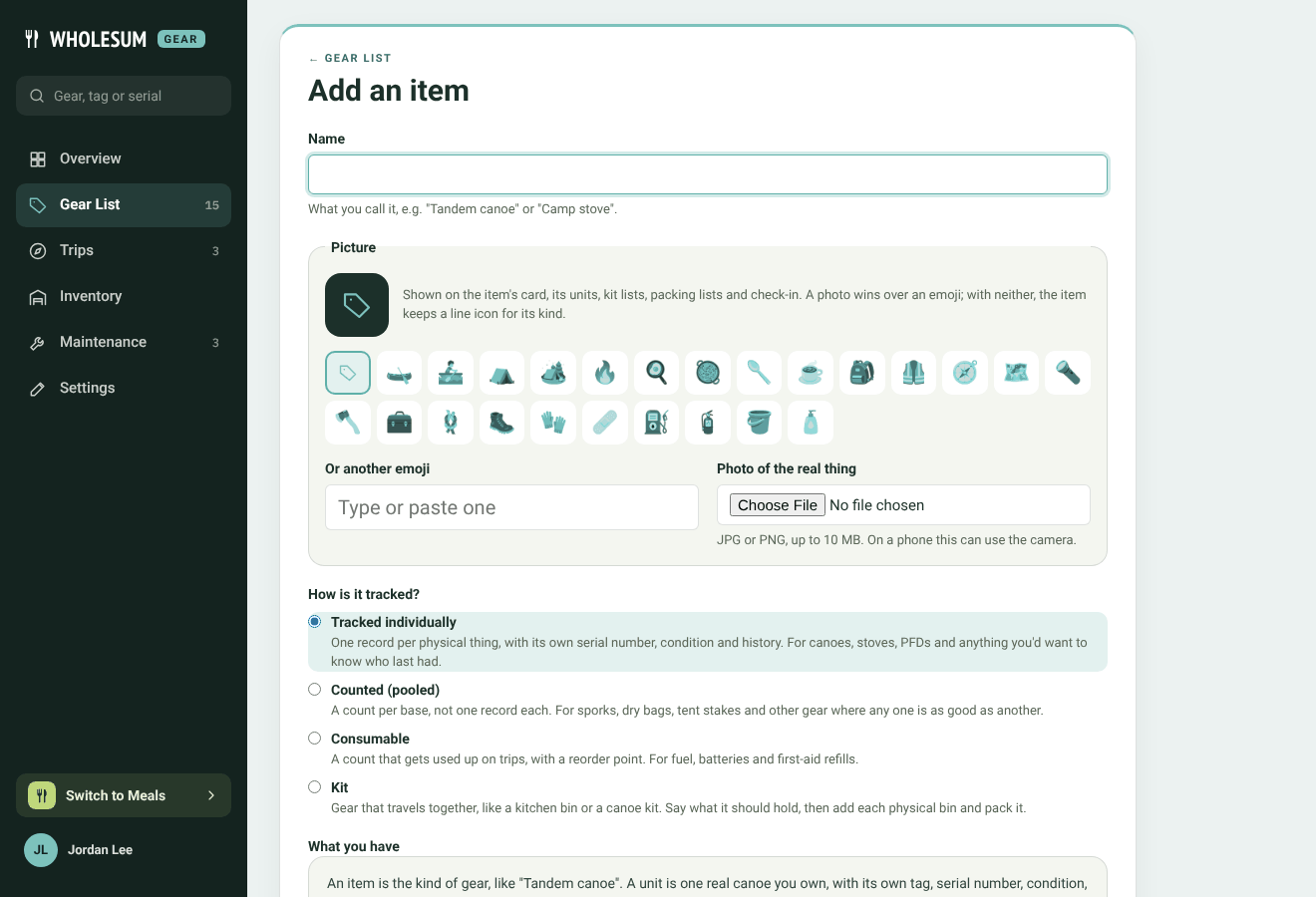
The Add an item form
The form
- Name: what you call it, for example Tandem canoe or Camp stove.
- Picture: pick an emoji, type your own, or upload a photo of the real thing (JPG or PNG, up to 10 MB; on a phone this can use the camera). The picture shows on the item's card, its units, packing lists and check-in. A photo wins over an emoji.
- How is it tracked?: Tracked individually, Counted, Consumable or Kit. See Items, units and kits: how Gear counts your gear.
- What you have: this part changes with the tracking type:
- Tracked: the first unit's tag (for example C-01), plus its serial number, condition and a short description such as "Red hull, new seats" to tell it apart. Add the rest of the units from the item's page afterwards.
- Kit: the first bin's tag (for example KITCHEN-A). You'll pack it next.
- Counted and Consumable: How many do you have? This puts them on the shelf. 0 is fine if you have none yet.
- Category: groups similar gear, such as Boats, Kitchen or Safety.
- Default vendor: where you usually buy it.
- Make, Model, Size or variant.
- Lifespan (months): how long before it should be retired, if the maker says. Leave it blank if it doesn't apply.
- Reorder point (counted and consumable gear): Gear warns you when the shelf drops below this many.
- Notes.
Click Save. The item opens, ready for more units or, for a kit, for its packing list.
Categories
Next to the Category box, Manage categories opens a window where you can add, rename, reorder and remove categories. You can open the same window from Gear's Settings.
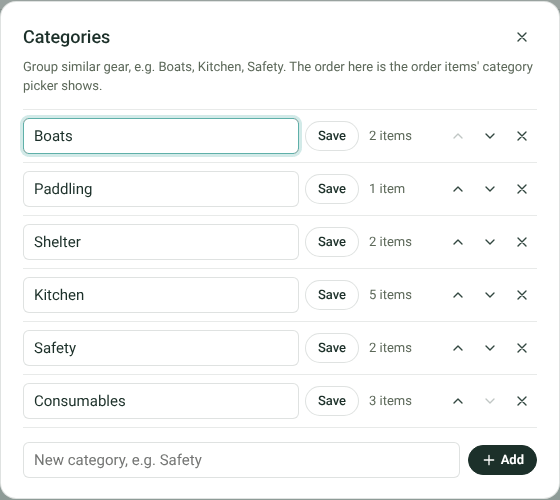
Managing categories
- Renaming a category renames it on all its items.
- The arrows set the order the category picker shows them in.
- Removing a category leaves its items with no category; it doesn't delete them.
Vendors
Manage vendors next to Default vendor lets you add a vendor without leaving the form. See Vendors for everything else you can keep about them.
Editing or deleting an item
Open the item and click Edit item. Delete item is at the bottom of its Details panel.
Deleting an item also deletes all its units and their history, and it can't be undone. To keep the history of a worn-out canoe, set that unit's status to Retired instead.


