
Keeping prices current is tedious. Olive can look up today's US retail price for up to 50 ingredients at a time, and shows you where it found each one. Nothing changes until you approve it.
Look up prices
- Go to Ingredients.
- Tick the ingredients you want priced. Tip: click missing a price first to list the ones that need it most.
- Click Update costs with Olive in the bar at the bottom.
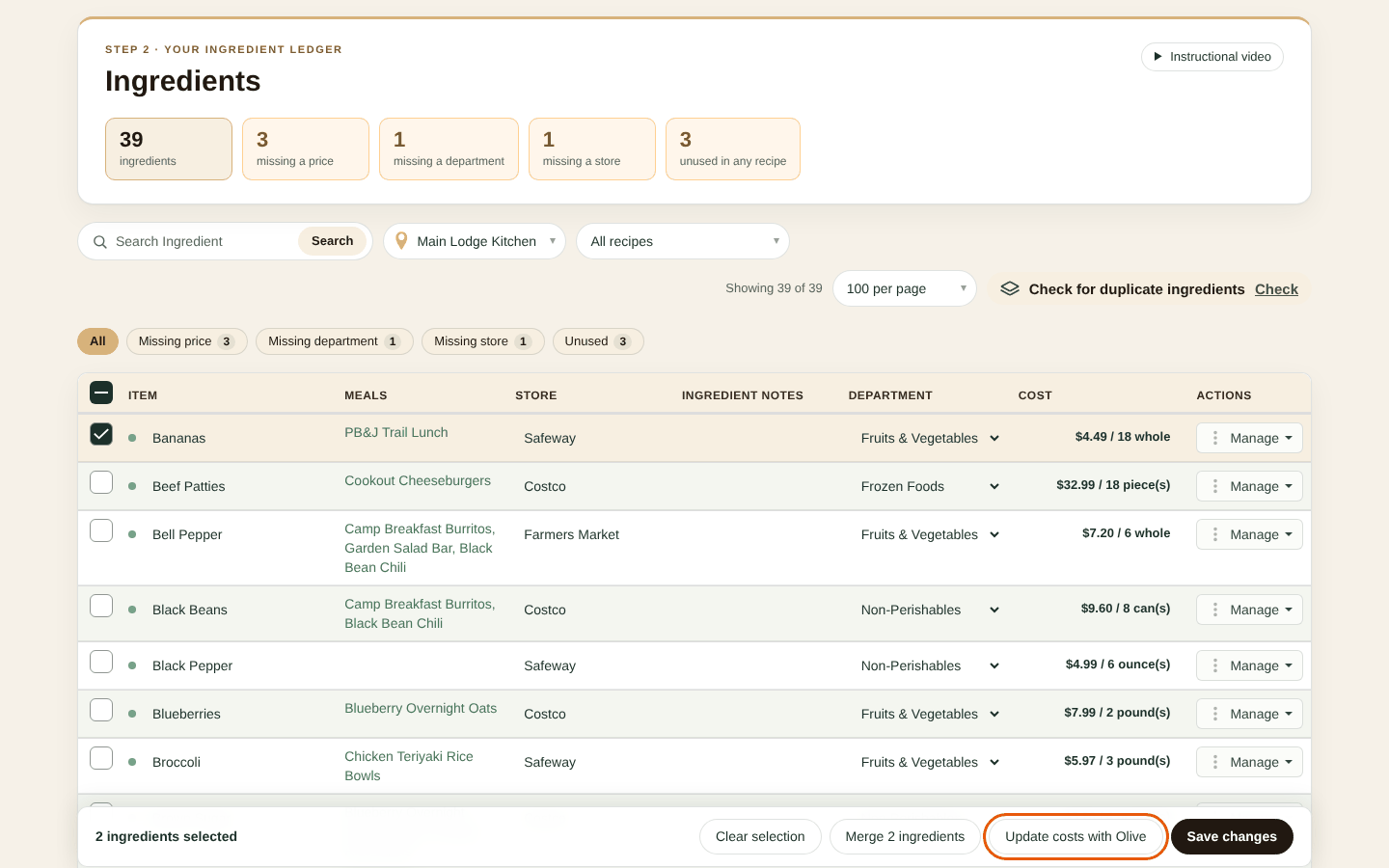
Selecting ingredients for Olive to price
Olive searches for each ingredient ("Olive is looking up prices… N of M"):
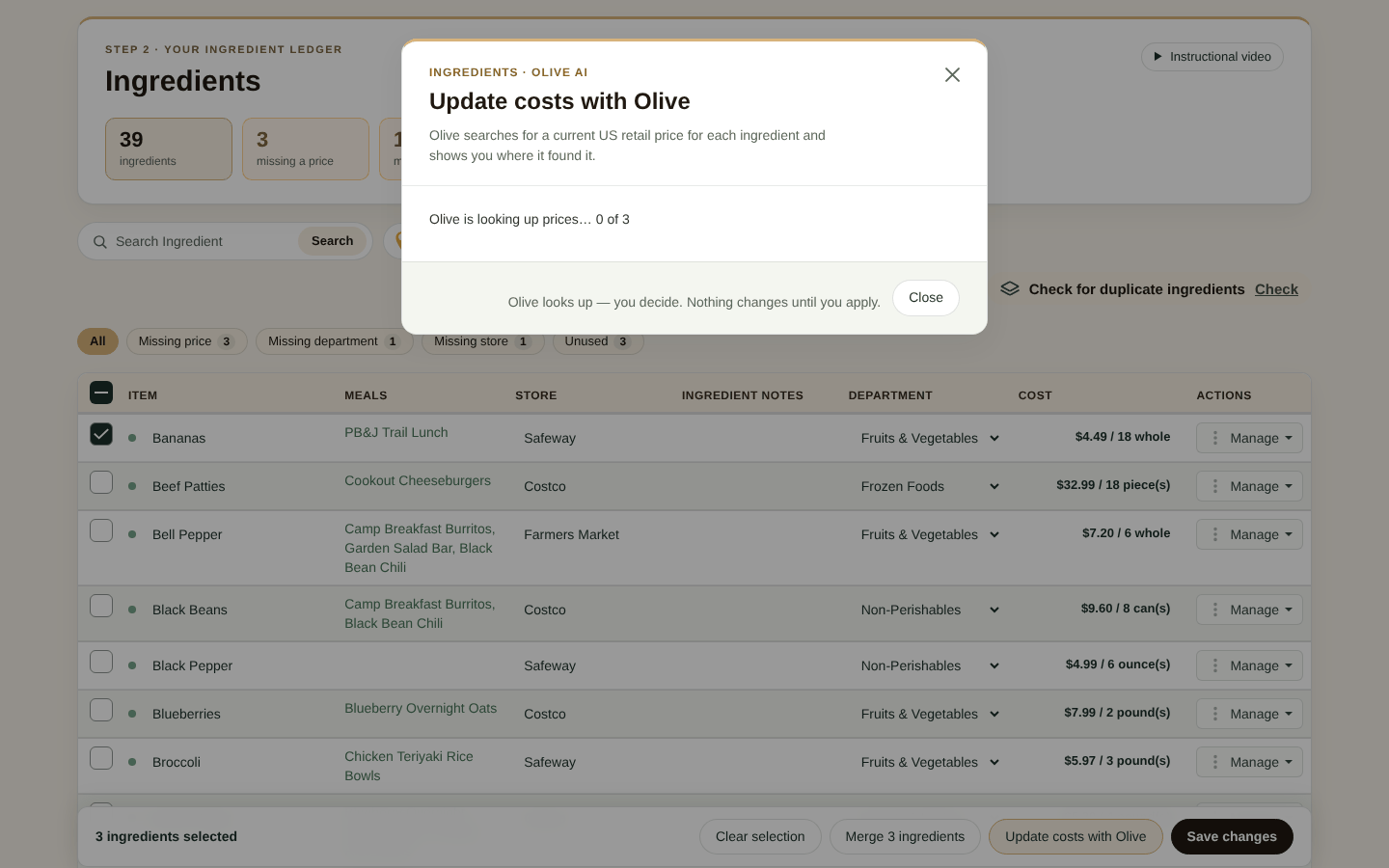
Olive looking up prices
Review and apply
When Olive has finished, What Olive found lists, for each ingredient:
- the current price, if any
- the price Olive suggests, with the pack size it found
- the source: a link to the store page, and the date it was found
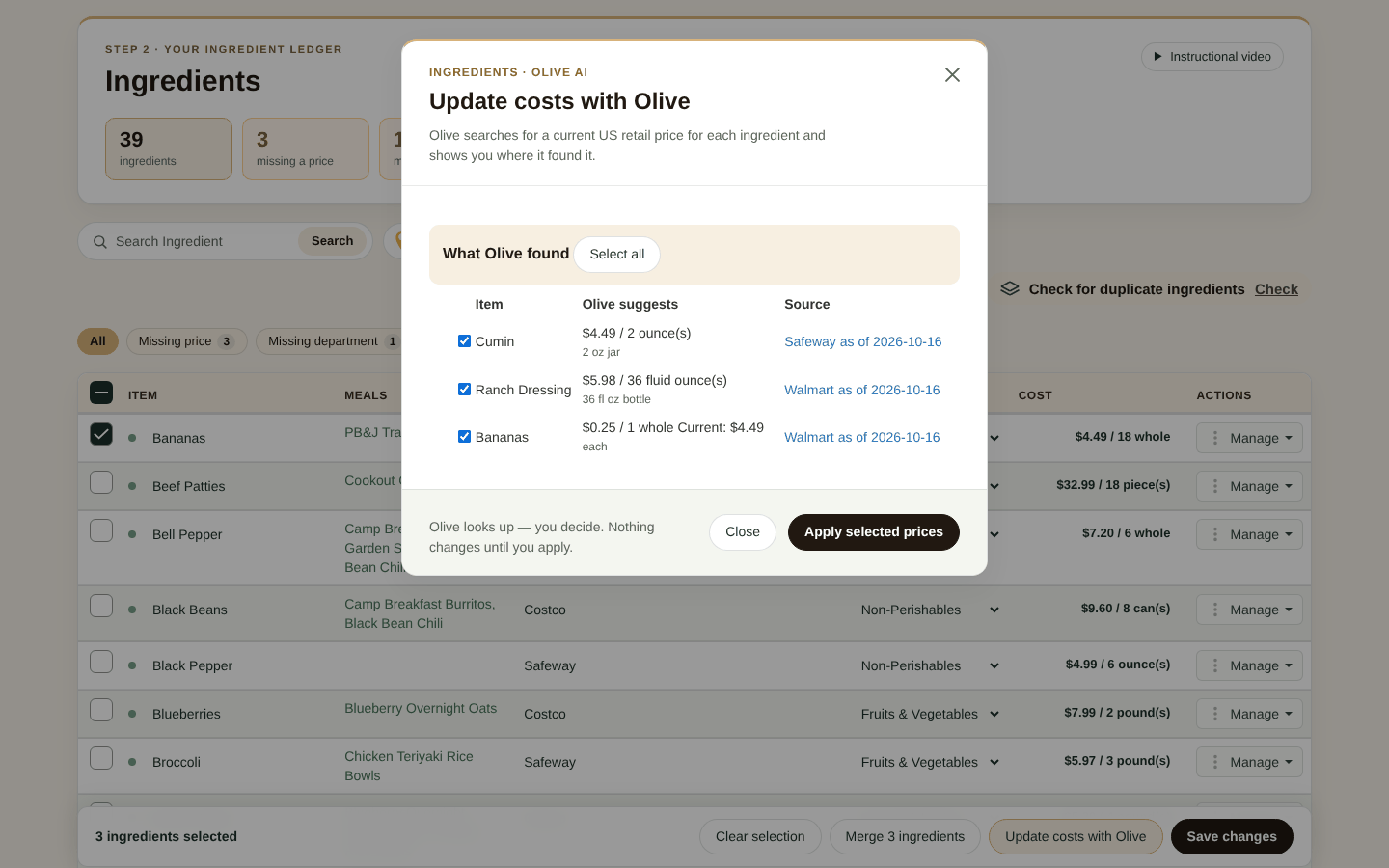
Olive's price suggestions with sources
- Check each suggestion. Click a source to see the product page.
- Untick anything you don't want to change. Prices that look unusual compared with your current price aren't ticked for you, and are marked "Check before applying".
- Click Apply selected prices.
You'll see "Applied N price(s)". To go back, click Undo these changes. Undo restores ingredients that already had a price before.
Good to know
- Prices are looked up for the location you're viewing, if you have several.
- If Olive can't find a price it can link to, or can't convert the store's pack size to your unit, that row explains why and can't be applied.
- One run uses one Olive request, however many ingredients you select (up to 50).
- Olive looks up ordinary US retail prices. If you buy wholesale or have contract pricing, enter your own prices instead. See Setting ingredient prices.


