
Describe your trip in a sentence, and Olive drafts a whole meal plan from your own recipes. It fills in the dates, headcount, meals and dietary restrictions, then places a recipe in every meal slot. You review it, move anything you like, and save.
Draft a plan
- Go to Meal plans and click Add new meal plan.
-
In Tell Olive about the trip at the top, describe the group. Include:
- how many people, and any appetite differences
- the dates, or how many days
- which meals (breakfast, lunch, dinner, snacks)
- any allergies or diets, and how many people have them
For example: "30 campers at Pathfinders Camp, July 27 to 29, breakfast lunch and dinner, two nut allergies". 3. Click Draft with Olive, or press Ctrl+Enter (⌘+Enter on a Mac).

Telling Olive about the trip
Olive reads your notes first. Reading your notes is free. If anything essential is missing, such as the dates or the number of people, Olive asks A couple of things Olive needs:
- the plan name
- dates or number of days (up to 31)
- how many people
- which meals
- what to avoid
- whether to base the plan on a similar past plan or Start fresh
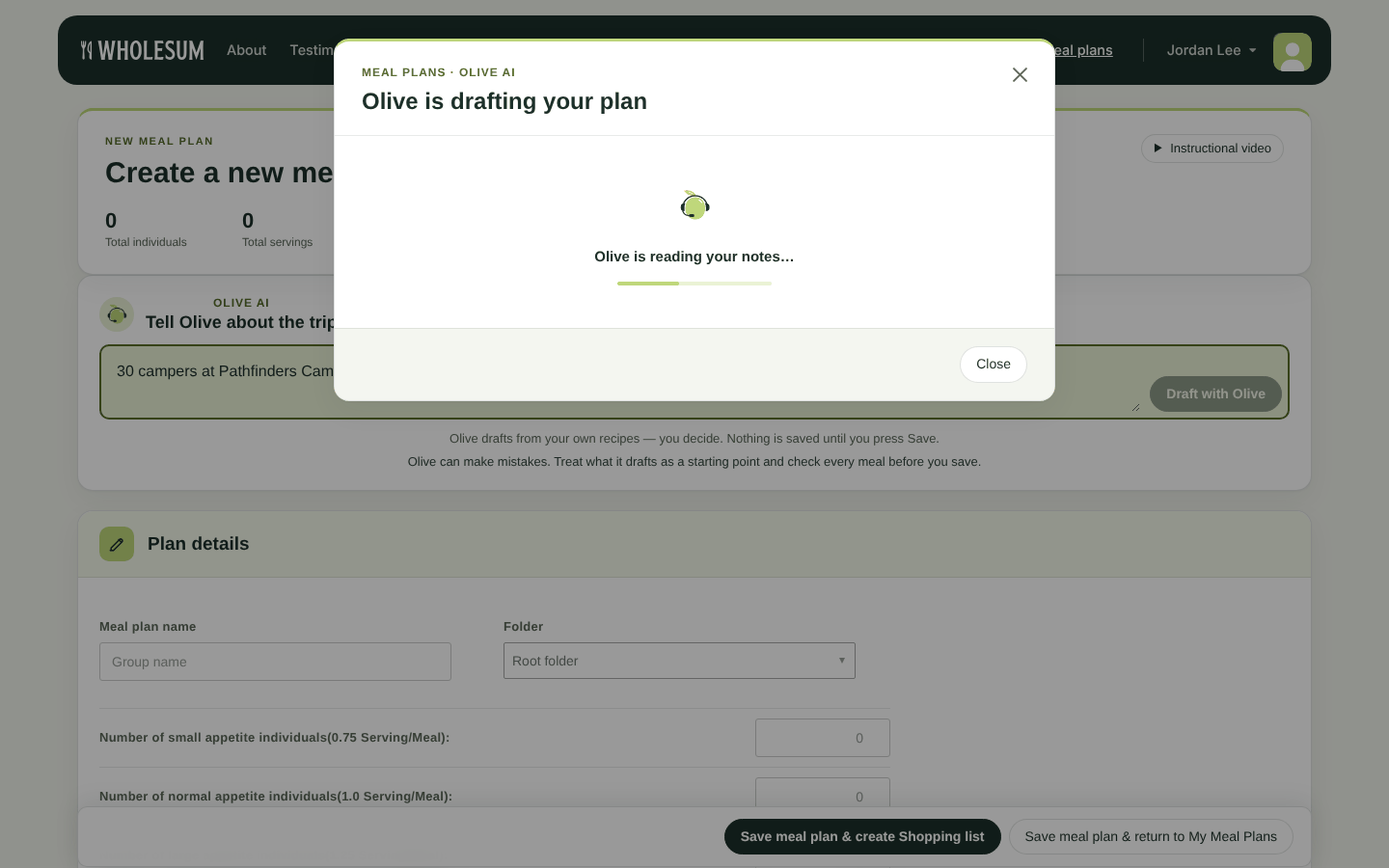
Olive drafting the plan
Review the draft
When Olive is finished, it summarises what it planned: When, People, Meals, Avoiding and Based on, and how many meals it filled ("Olive planned 9 of 9 meals").
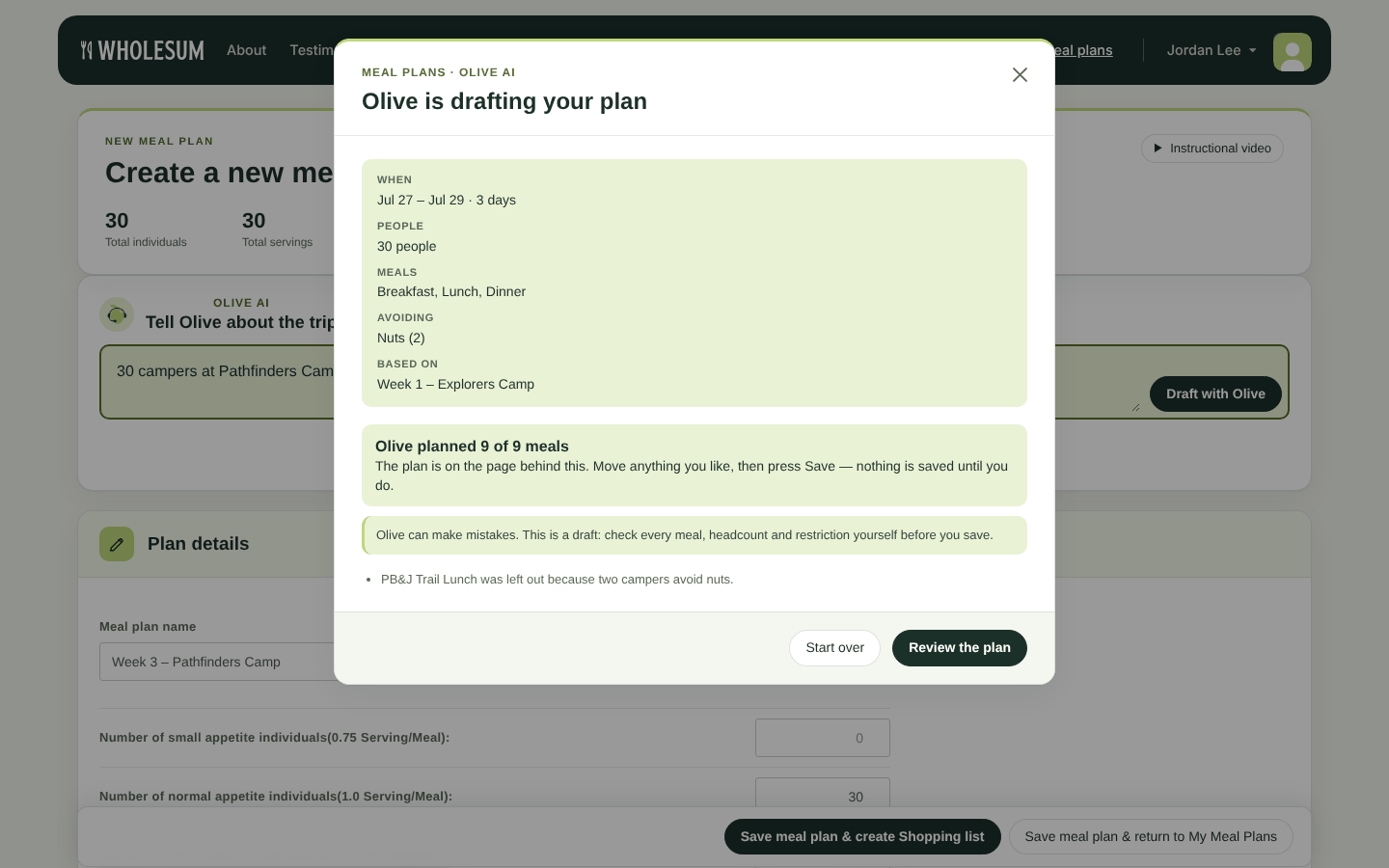
Olive's summary of the drafted plan
- If a slot couldn't be filled, it's listed under Olive could not fill, sometimes with a suggested recipe to add.
- Olive's notes explain its choices. For example, it may have left out a recipe that conflicts with an allergy.
Click Review the plan. The plan details, dietary restrictions and calendar are now filled in on the page:
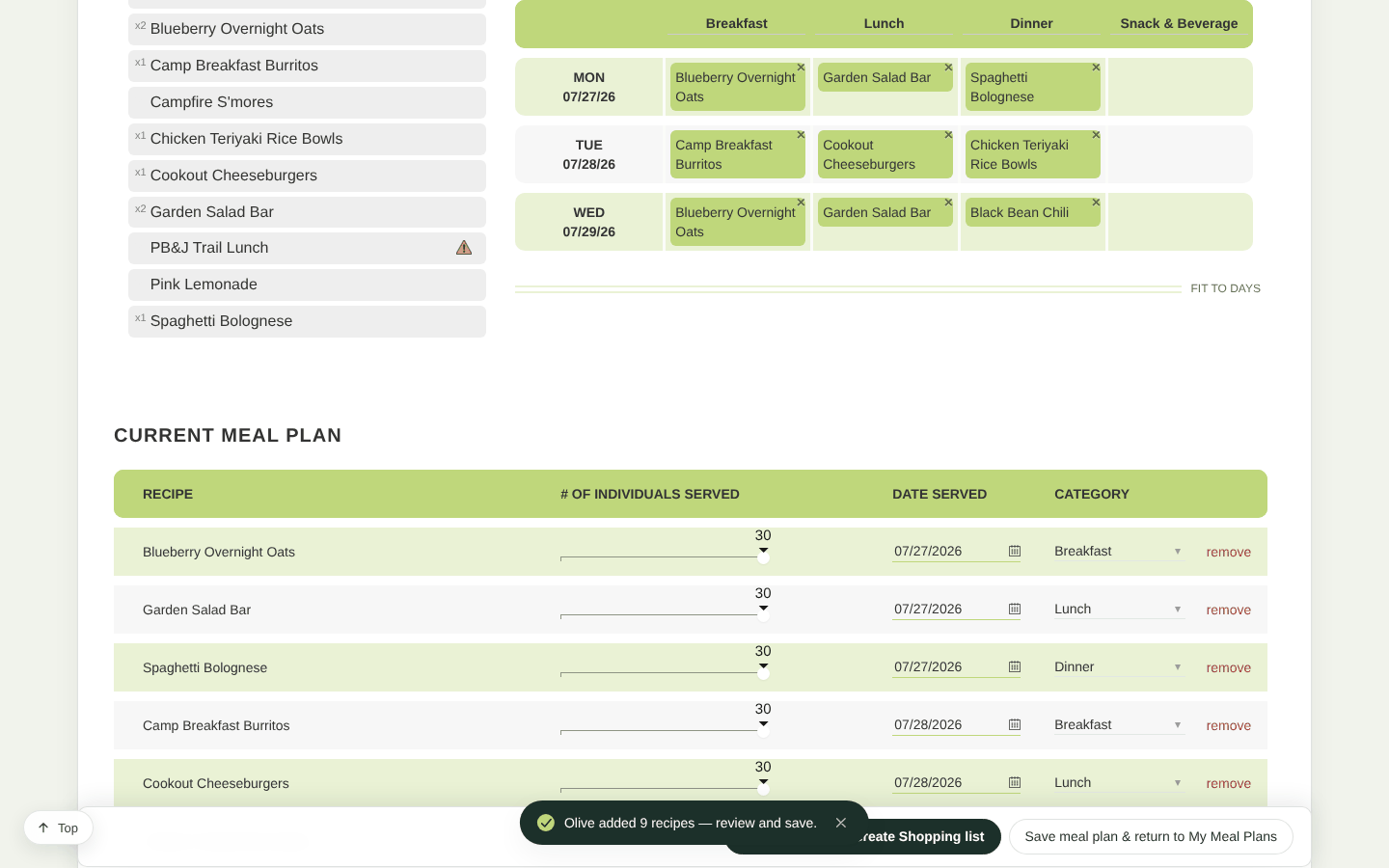
The drafted plan on the calendar
Drag recipes around, change who's served, or add and remove meals exactly as you would when Creating a meal plan yourself. Then click Save meal plan & create Shopping list.
Nothing is saved until you press Save. Olive can make mistakes, so check every meal, the headcount and the restrictions before saving.
Good to know
- Olive drafts from the recipes in your library, so the more recipes you have, the better the plans. Recipes that conflict with the group's restrictions are left out.
- If no recipes fit, for example because every recipe contains a restricted ingredient, Olive says so. Add more recipes, or untick a restriction.
- Drafting a plan uses one Olive request, and only when the draft succeeds. See Meet Olive, your AI assistant.
- The Olive box only appears when you create a new plan, not when you edit one.


