
Already have your recipes in a binder, a PDF cookbook or a spreadsheet? Olive can read them all at once. It matches ingredients to the ones you already have, and gives you a draft of every recipe to check before anything is saved.
To start, go to My recipes → Create new recipe → Import from photos, PDF or spreadsheet.
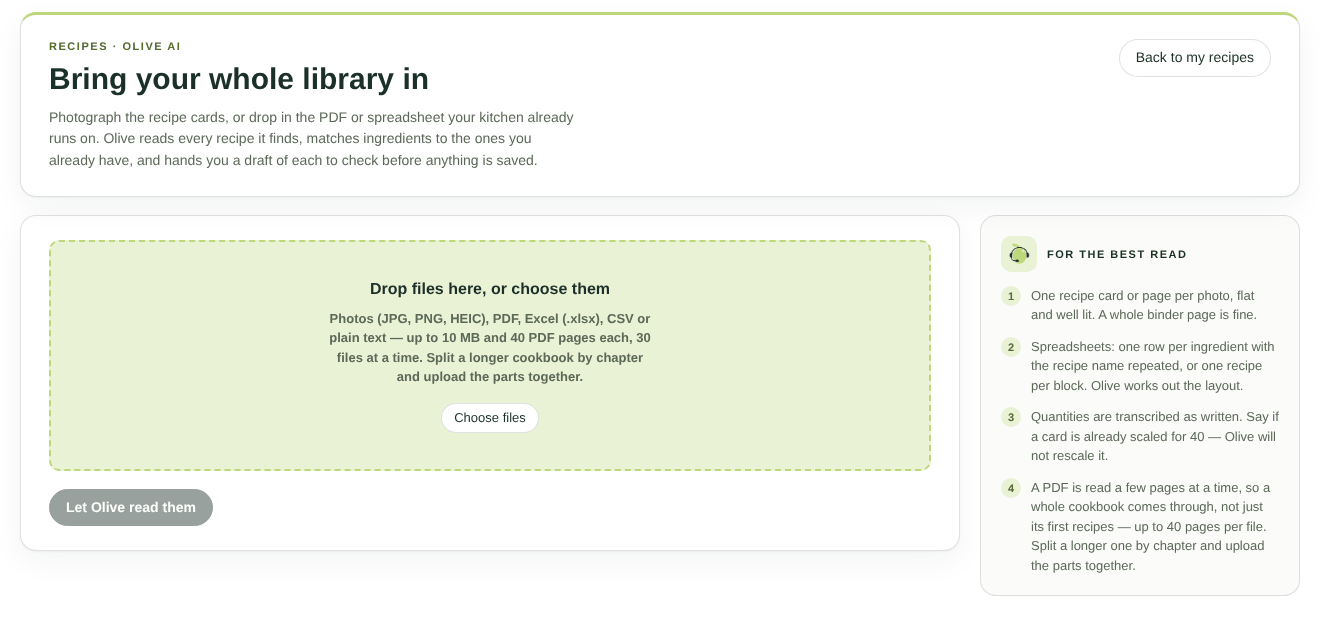
The bulk import page
What you can upload
- Photos of recipe cards or pages (JPG, PNG, HEIC)
- PDF files, up to 40 pages each
- Excel spreadsheets (.xlsx) or CSV files
- Plain text files
You can upload up to 30 files at a time, each up to 10 MB. Split a longer cookbook by chapter and upload the parts together.
For the best results
- Take one recipe card or page per photo, flat and well lit. A whole binder page is fine.
- Spreadsheets can have one row per ingredient with the recipe name repeated, or one recipe per block. Olive works out the layout.
- Quantities are copied exactly as written. If a card is already scaled for 40 people, Olive won't rescale it, so check the servings.
Step by step
- Drag your files onto Drop files here, or choose them, or click Choose files.
- Check the list of files ready to upload. Remove any you didn't mean to add.
- Click Let Olive read them.
- Olive reads each file and shows progress ("N of M files read"). You can leave the page and come back later.
- When Olive's done, you'll see Check each recipe, then import.
Check each recipe
For each recipe Olive found, you'll see the file it came from, the Recipe name and Servings, the ingredients, the instructions, and any notes from the document.
- Untick Import this recipe to skip a recipe.
- Possible duplicates: if you already have a recipe with the same name, it's left unticked. Use Open existing to compare.
- Ingredient matches: each ingredient shows one of:
- Matched: an existing ingredient.
- Similar to: choose Use "name" or Keep as new.
- New. You can also pick a different match with Match to an ingredient….
- Units: if Olive couldn't map a unit, or it doesn't fit how the ingredient is measured, the row is flagged. Pick the right unit.
- If a document didn't say how many it serves, you'll be asked to check the servings.
When everything looks right, click Import N recipes. You'll see "N recipes imported into your library". Any recipe that couldn't be saved stays on the page for you to fix.
Requests used
Each file uses one Olive request, so 12 photos use 12 requests. Enterprise plans are unlimited. On other plans, if your free allowance runs out partway through, the remaining files aren't read. See Meet Olive, your AI assistant.
If a file can't be read
- Too many pages: split the PDF and upload the parts.
- Too dense: a single page with a huge amount of text may be too much to read in one go. Try splitting it.
- Not a supported file: only photos, PDFs, spreadsheets and text files can be read.
- No recipes found: Olive didn't find a recipe in the file. Check it's the right file and that photos are clear.


