
Available on Enterprise plans (unlimited team members) and Personal plans (one extra team member). Each team member is billed per month on top of your plan.
Team access lets cooks, shoppers and other staff work inside your account. They see your recipes, ingredients and meal plans, with only the permissions you give them. Each person has their own login.
Open Team access
Go to Settings. Under Sharing & access, find Team access and click Manage.
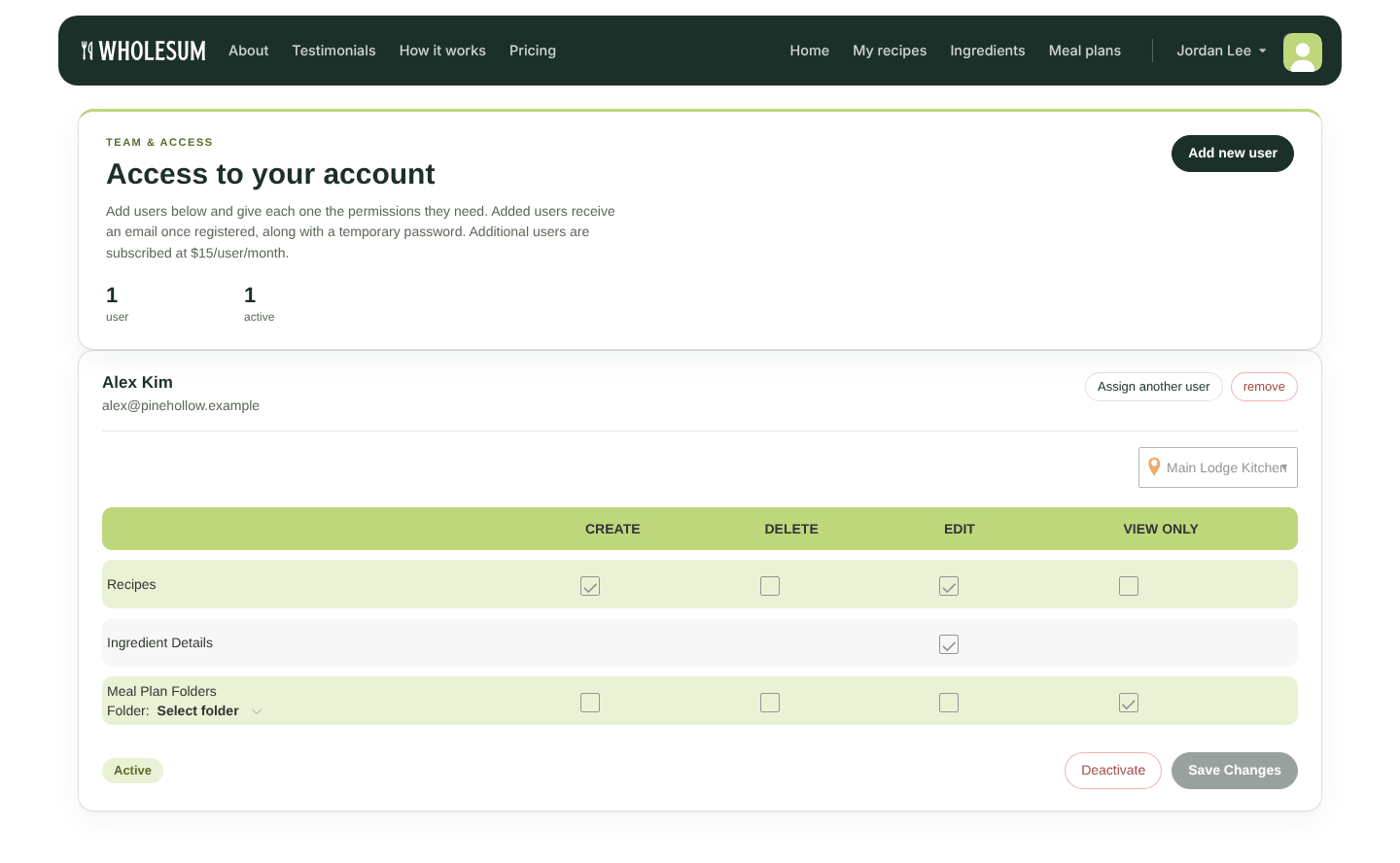
The Team access page
Invite someone
- Click Add new user.
- Enter their Email, First name and Last name, then click Save.
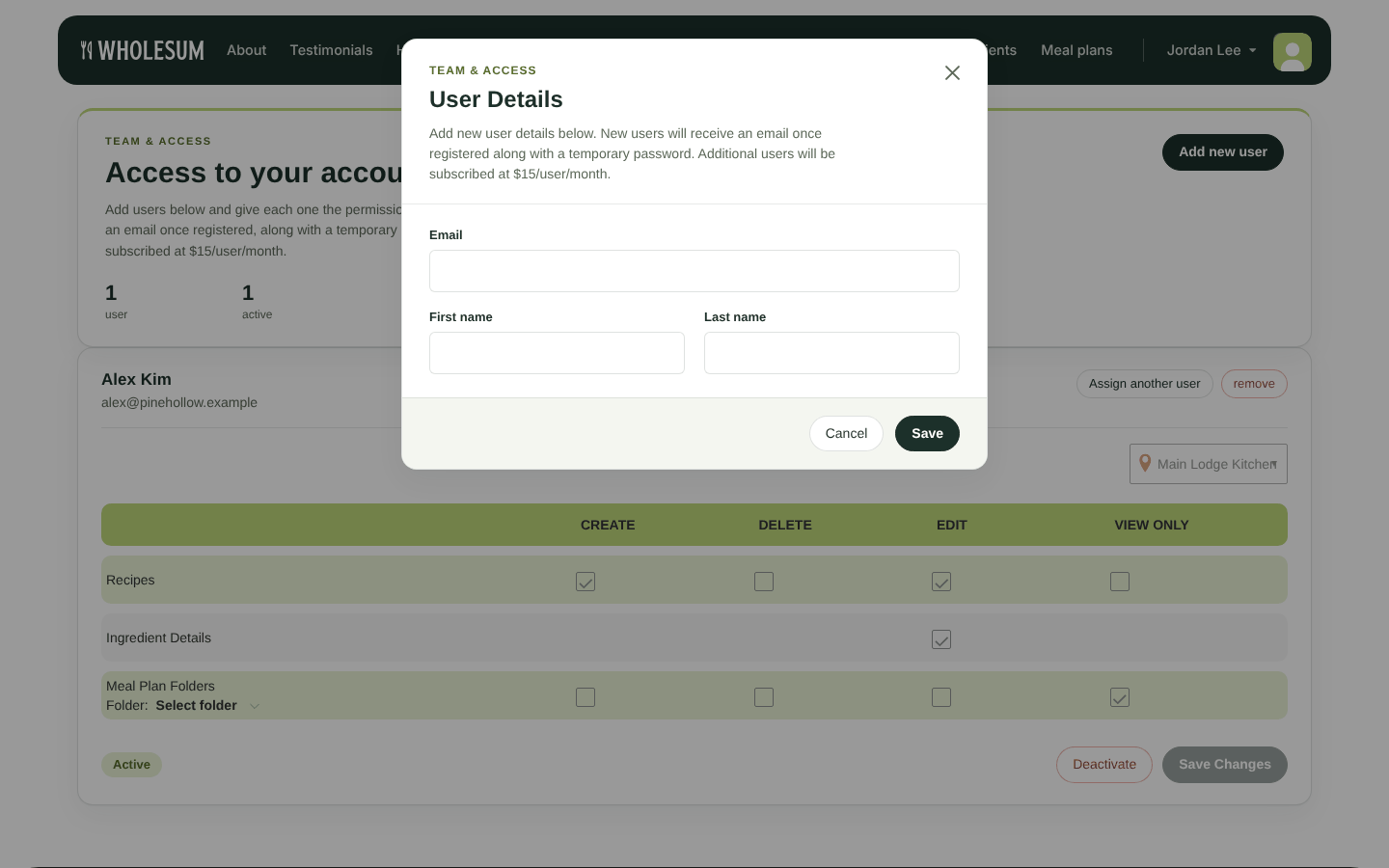
Inviting a team member
- Someone new to Wholesum gets an email invitation with a temporary password. They should change it after logging in, under Account.
- Someone who already has a Wholesum account is linked to your account straight away. They aren't sent an email, so let them know.
- Someone who already pays for their own Wholesum subscription can't be added. Ask them to use a different email address.
Choose what they can do
Each team member has a permissions card:
| Area | Choices |
|---|---|
| Recipes | Create, Delete, Edit, View Only |
| Ingredient Details | Edit: lets them open and edit the Ingredients page |
| Meal Plan Folders | Choose All folders or a specific Folder. Then choose All meal plans or pick individual meal plans, with Create, Delete, Edit or View Only for each. |
If you use multiple locations, choose the location this person works at.
Click Save Changes.
Activate, deactivate or remove
- Activate: starts the team member's monthly subscription. The card on file for your account is charged automatically. Confirm with I understand.
- Deactivate: stops their subscription. They can no longer get into your account.
- Remove: removes their access completely and signs them out.
- Assign another user: gives this seat to someone else.
The status on each card shows Active or Not active.
What team members see
When a team member logs in, they work directly in your account:
- They see only the areas and meal plans you've given them permission for, at their assigned location.
- Their menu shows Account and Log out, without Settings or Subscription. Those belong to you as the account owner.
- Exports use your export settings.
- Olive draws on your account's Olive allowance, which is unlimited on Enterprise.
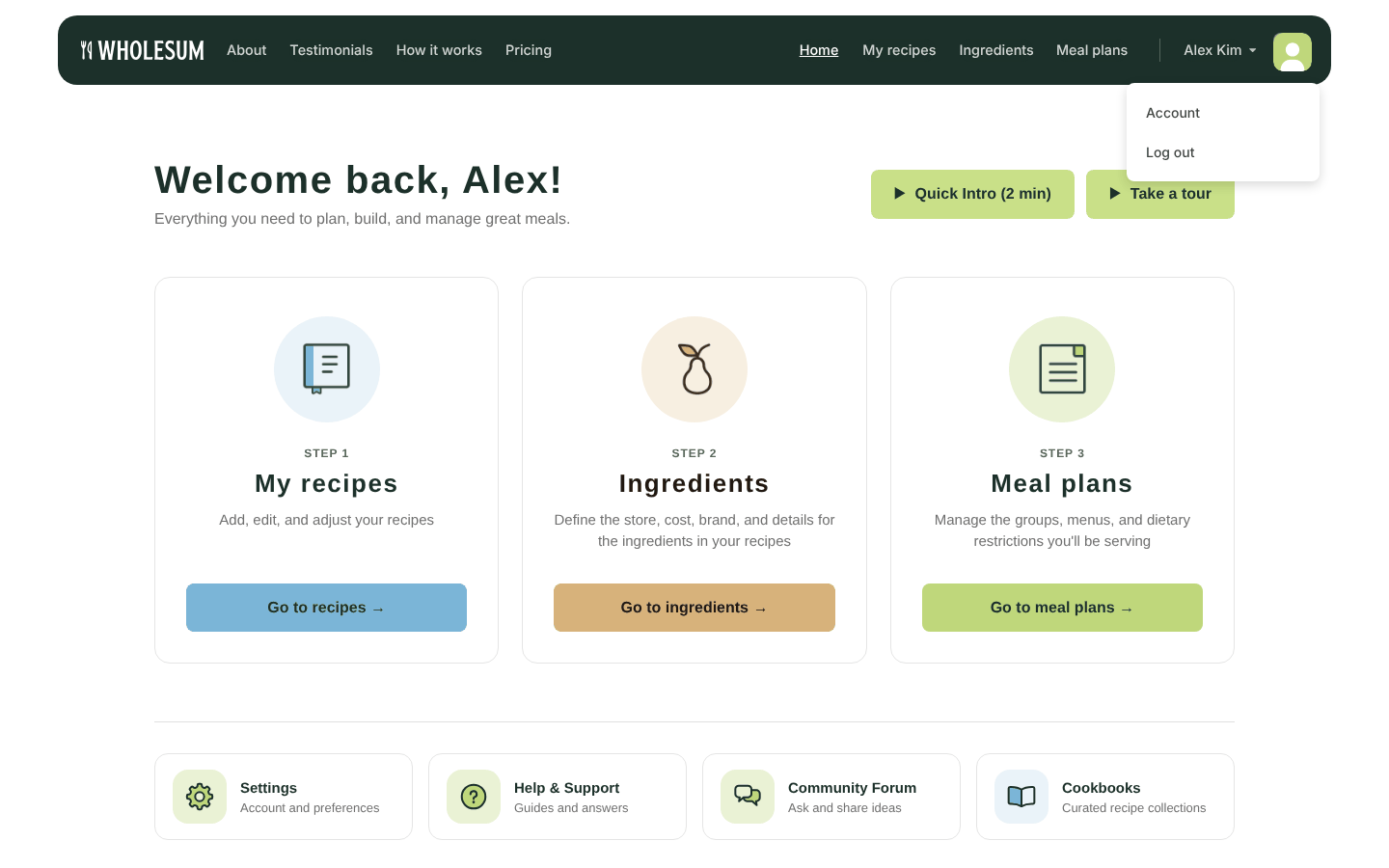
What a team member sees
A team member's access depends on your subscription. If your subscription lapses, they lose access until you renew. Cancelling your subscription also cancels their seats at the end of the billing period.
Video walkthrough
This video shows how to set up team members. Some screens have changed since it was recorded.


