
Click Settings at the bottom of the Gear menu. These are separate from your Meals settings. Switches save as soon as you flip them.
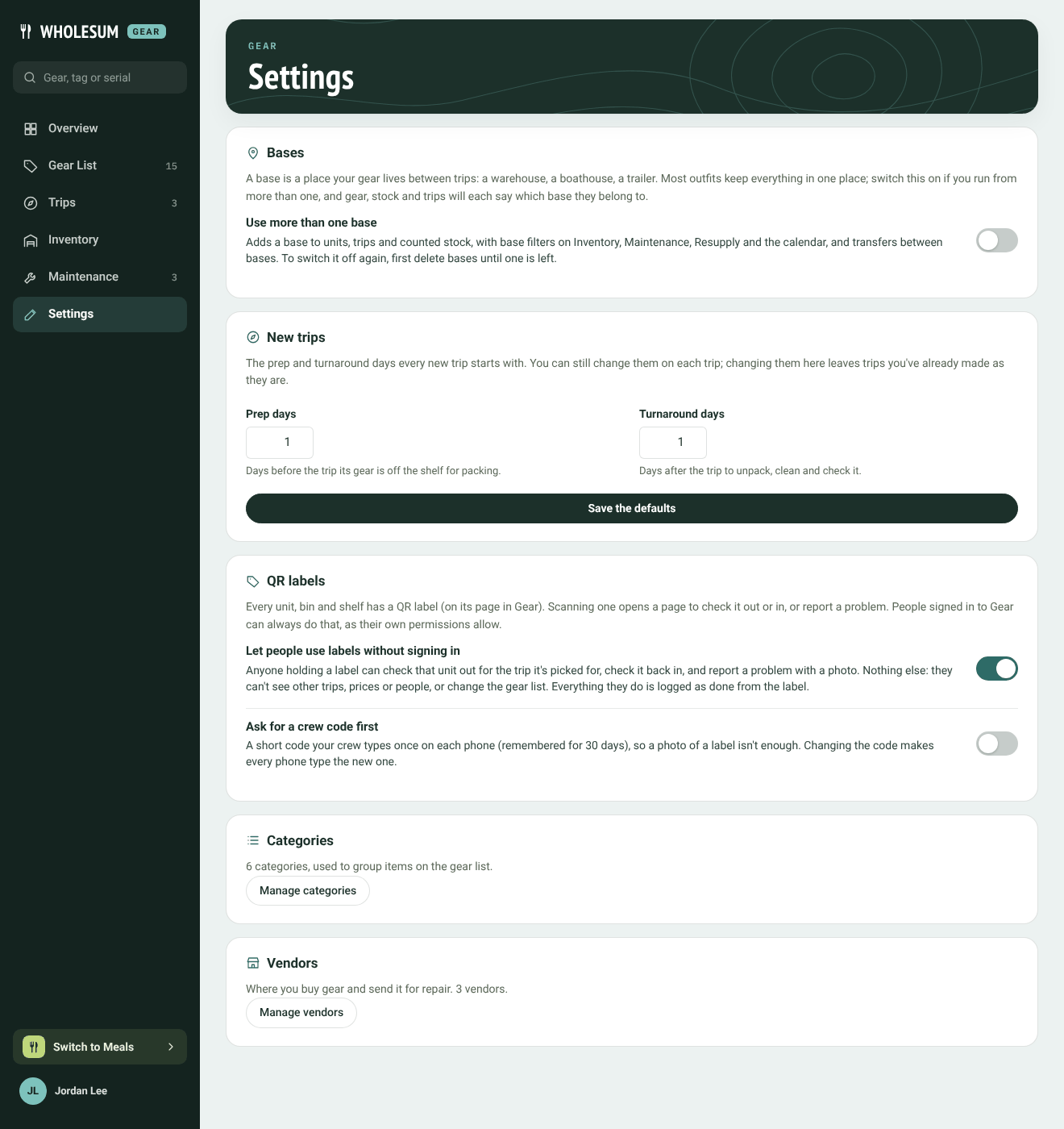
Gear settings
Bases
A base is where your gear lives between trips: a warehouse, a boathouse, a trailer. Most outfits keep everything in one place, and Gear works that way by default.
Switch on Use more than one base if you run from more than one place. Then:
- units have a home base, and trips leave from a base;
- counted gear has a separate count at each base;
- Inventory, Maintenance, Resupply and the calendar get a base filter;
- Inventory can move stock from one base to another;
- auto-pick on a trip takes units from the trip's own base first.
Click Manage bases to add, rename or delete bases.
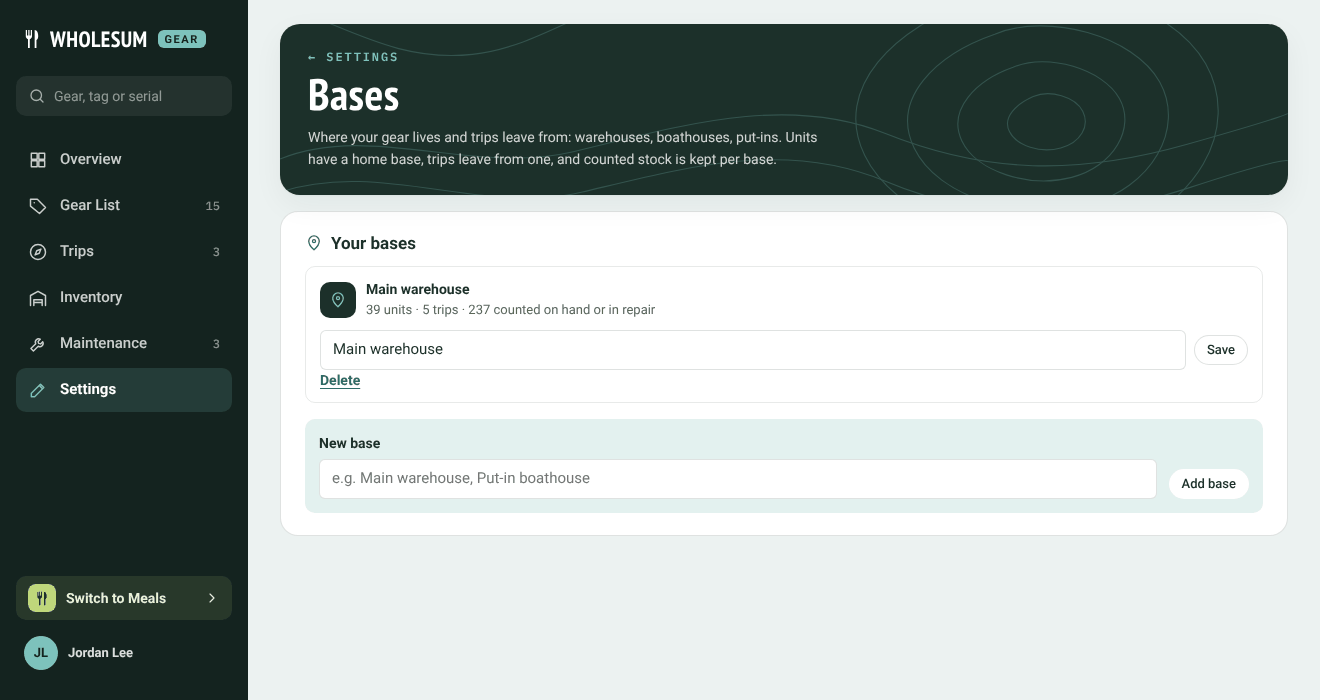
Managing bases
Deleting a base leaves its units and trips without a base. A base that still has counted stock on the shelf or in repair can't be deleted: move the stock to another base or write it off first.
To switch multiple bases off again, first delete bases until one is left.
New trips
The Prep days and Turnaround days every new trip starts with: the days before a trip its gear is off the shelf for packing, and the days after for unpacking, cleaning and checking. You can still change them on each trip. Changing them here leaves trips you've already made as they are. Click Save the defaults.
QR labels
- Let people use labels without signing in: lets anyone holding a label check that unit out and in and report a problem. On by default.
- Ask for a crew code first: requires a 4 to 8 digit code on each phone before labels work. Set the code and click Save the code.
See QR labels.
Categories and vendors
Manage categories opens the categories window (see Adding gear to your gear list). Manage vendors opens the Vendors page (see Vendors).


